
Python for Automation: What Should You Learn First?
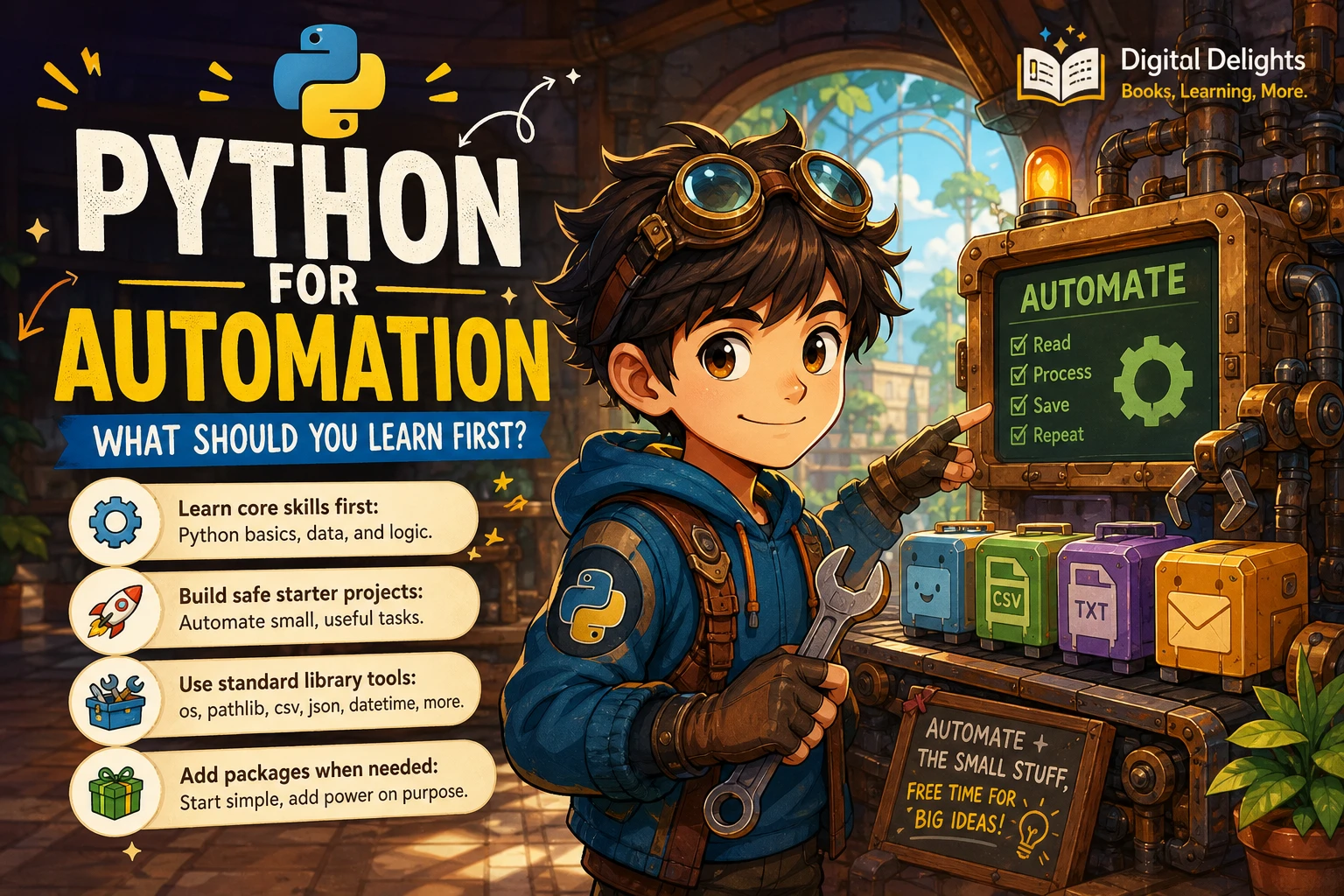
If you want Python to take repetitive work off your hands, you do not need to begin with a large framework or a collection of automation packages. Start with core Python, practise reading and changing data, then build a small script that solves a real but low-risk task. The exact route depends on what you want to automate, but the fundamentals transfer across file, spreadsheet, and web-related projects.
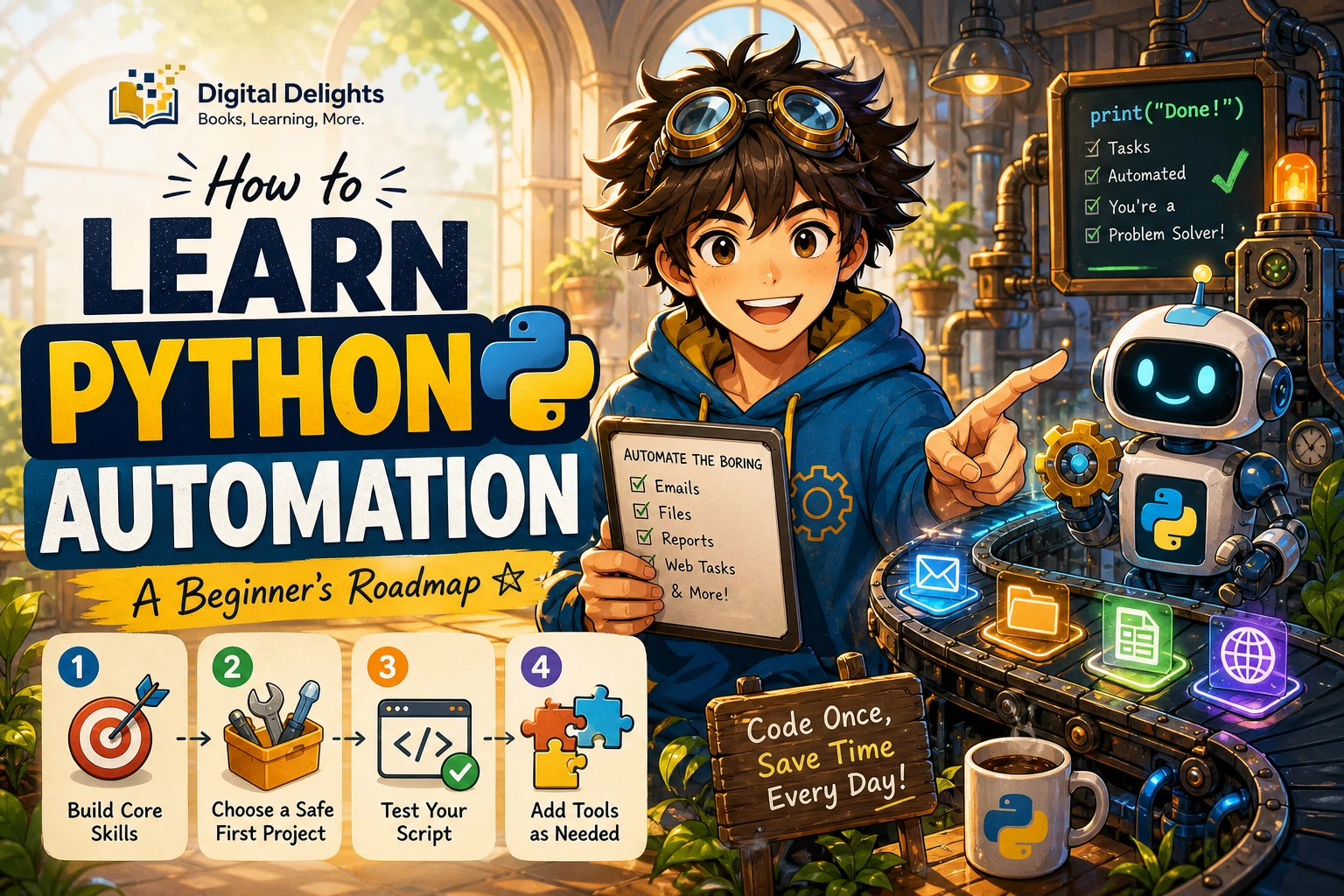
A practical starting sequence is: learn values and collections, add conditions and loops, write functions, practise debugging, then work with files and paths. After that, choose one small project and add specialized tools only if the task calls for them. This is a useful learning path, not a proven one-size-fits-all sequence.
Learn the Python Fundamentals First
Automation scripts are programs: they take input, make decisions, repeat operations, and produce output. Understanding those building blocks makes it easier to adapt a script safely instead of treating it as a mysterious block of copied code. The official Python tutorial covers core syntax and data structures before moving through control flow, functions, modules, files, exceptions, and virtual environments; that sequence is a helpful reference, not evidence that one order works best for every learner (Python tutorial).
1. Values, strings, lists, and dictionaries
Begin with variables and common data types: text, numbers, and true-or-false values. Then practise working with collections:
- Strings let you clean, compare, and format text such as filenames or spreadsheet fields.
- Lists hold sequences of items, such as a group of files to process.
- Dictionaries associate labels with values, which is useful for named fields in a record.
For example, a list could contain several filenames, while a dictionary could represent one contact with keys such as name and email. You do not need advanced data structures to start automating ordinary tasks.
2. Conditions and loops
Conditions let a script choose what to do: process only files with a particular extension, for instance. Loops let it repeat an action for each item in a list or each row in a data file. Together, these ideas turn a one-off instruction into a repeatable workflow.
3. Functions, modules, and debugging
Functions give a task a name and make it easier to reuse. Modules let you organize code and use Python’s built-in capabilities. Also learn to read error messages and tracebacks: they often point to the line and type of problem that stopped a script. Practise changing one thing at a time and rerunning the script with a small example.
If you want a structured introduction that moves from fundamentals into projects, Python Crash Course includes coverage of core concepts and project chapters that apply Python to areas including automation and data analysis.
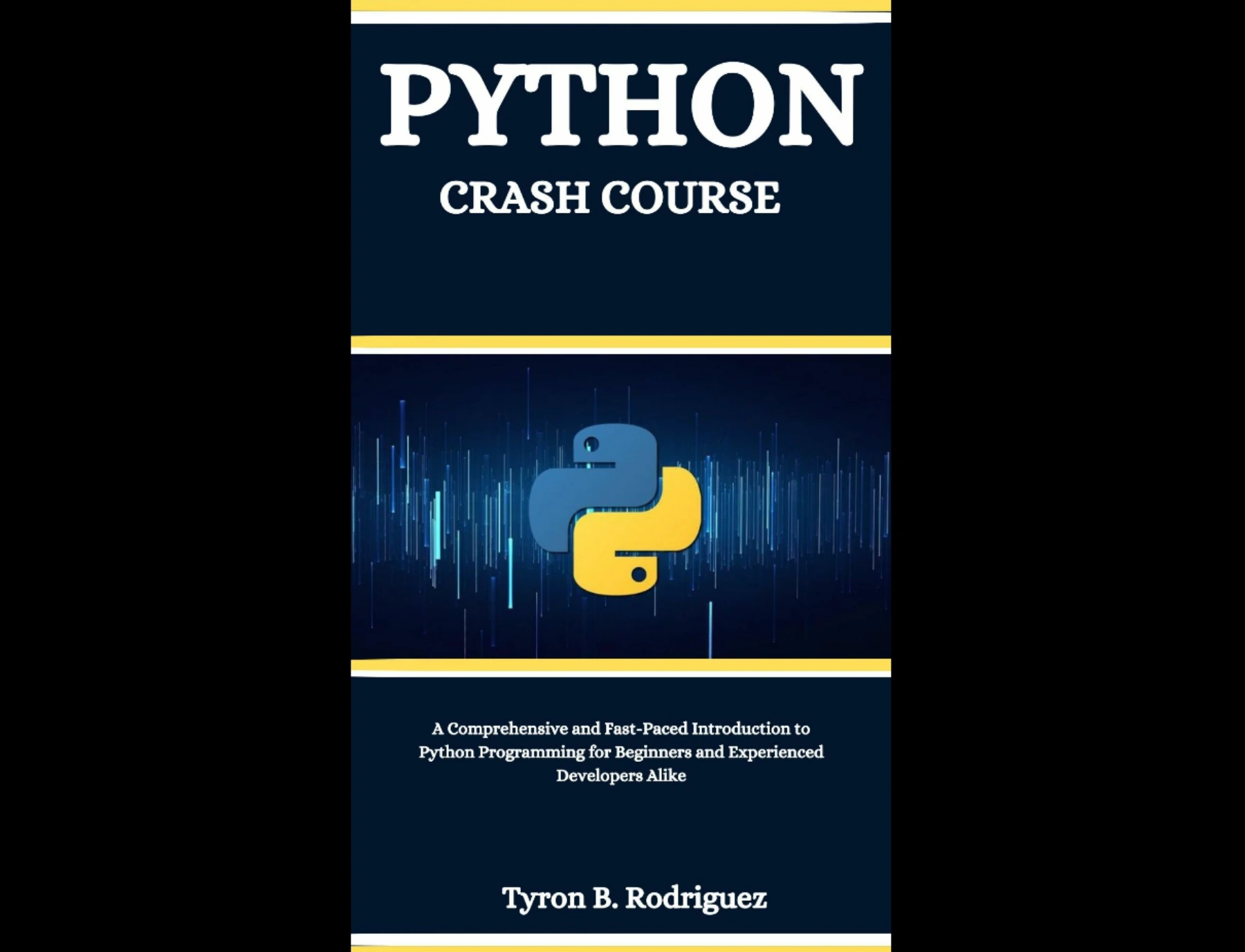
Beginners seeking core concepts followed by projects, including automation and data analysis.
Build Skills Used in Everyday Automation
Once the fundamentals feel familiar, focus on the kinds of input and output your intended task involves. The Python standard library includes tools for common jobs such as working with paths, CSV files, logging, and running subprocesses, so you can often begin without installing extra packages (Python standard library documentation).
Files and paths
Learn how to find files, inspect their names and extensions, and read or write their contents. Pay attention to paths: a script may behave differently depending on where it is run and which folder it treats as its starting point. Test file operations on a sample folder or duplicate files before letting a script rename, move, or delete anything important.
CSV and other simple data formats
CSV files are a practical way to practise working with rows and columns without first learning a specialist data framework. Try reading a sample file, cleaning a field, and writing the result to a separate output file. JSON is another format you may encounter when working with structured data or web services.
Here is a small CSV example. It reads contacts.csv, removes extra spaces from each name, and saves the result as contacts_clean.csv rather than changing the original file:
import csv

with open("contacts.csv", newline="", encoding="utf-8") as source:
    rows = csv.DictReader(source)
    fieldnames = rows.fieldnames

    with open("contacts_clean.csv", "w", newline="", encoding="utf-8") as output:
        writer = csv.DictWriter(output, fieldnames=fieldnames)
        writer.writeheader()

        for row in rows:
            row["name"] = row["name"].strip()
            writer.writerow(row)
This example assumes the CSV has a column called name. Use a small sample file with matching headers first, and check the output before applying the idea to valuable data.
Exceptions and safe handling of errors
Files may be missing, data may not match the expected format, and a task may fail partway through. Learn what exceptions mean and how to handle expected problems clearly. Avoid hiding every error with a broad exception handler: if something goes wrong, useful feedback helps you diagnose it rather than silently producing incomplete results.
Choose a First Project That Matches Your Goal
Pick one repetitive task you can describe in a few steps. Keep the first version small, use sample data, and make the output easy to check. A project is more useful when it targets a real need than when it introduces several unfamiliar tools at once.
- Organize copies of files: sort duplicate sample files into folders by extension or date. Start by listing what the script would move; add the actual move only after checking the proposed changes.
- Transform a sample CSV: standardize whitespace, select a few columns, or create a clean output file without altering the source.
- Automate a repetitive spreadsheet task: identify a recurring step such as preparing a report, then practise on a copy of the workbook. If spreadsheets are your main use case, Python for Excel Users: Know Excel? You Can Learn Python is aimed at spreadsheet users and connects familiar Excel work with Python concepts and automation.
- Explore browser automation later: choose this route if your task genuinely involves a website or browser testing. Browser automation has its own setup and reliability concerns, so first become comfortable with Python basics. Python Testing with Selenium focuses on Python with Selenium WebDriver and testing techniques, making it a more specialized follow-on resource than a first Python lesson.
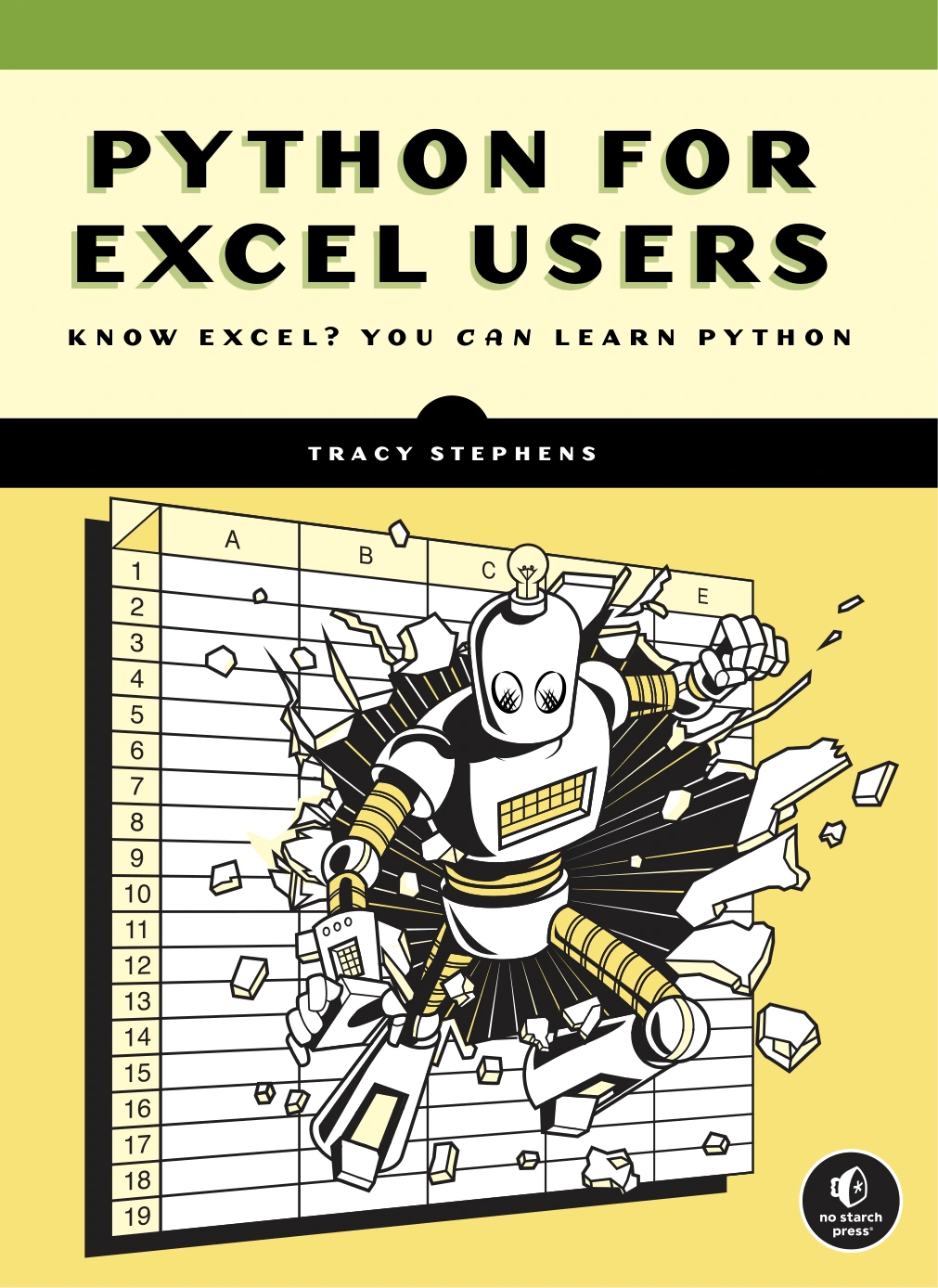
Python for Excel Users: Know Excel? You Can Learn Python
Excel users who want to connect familiar spreadsheet work with Python.
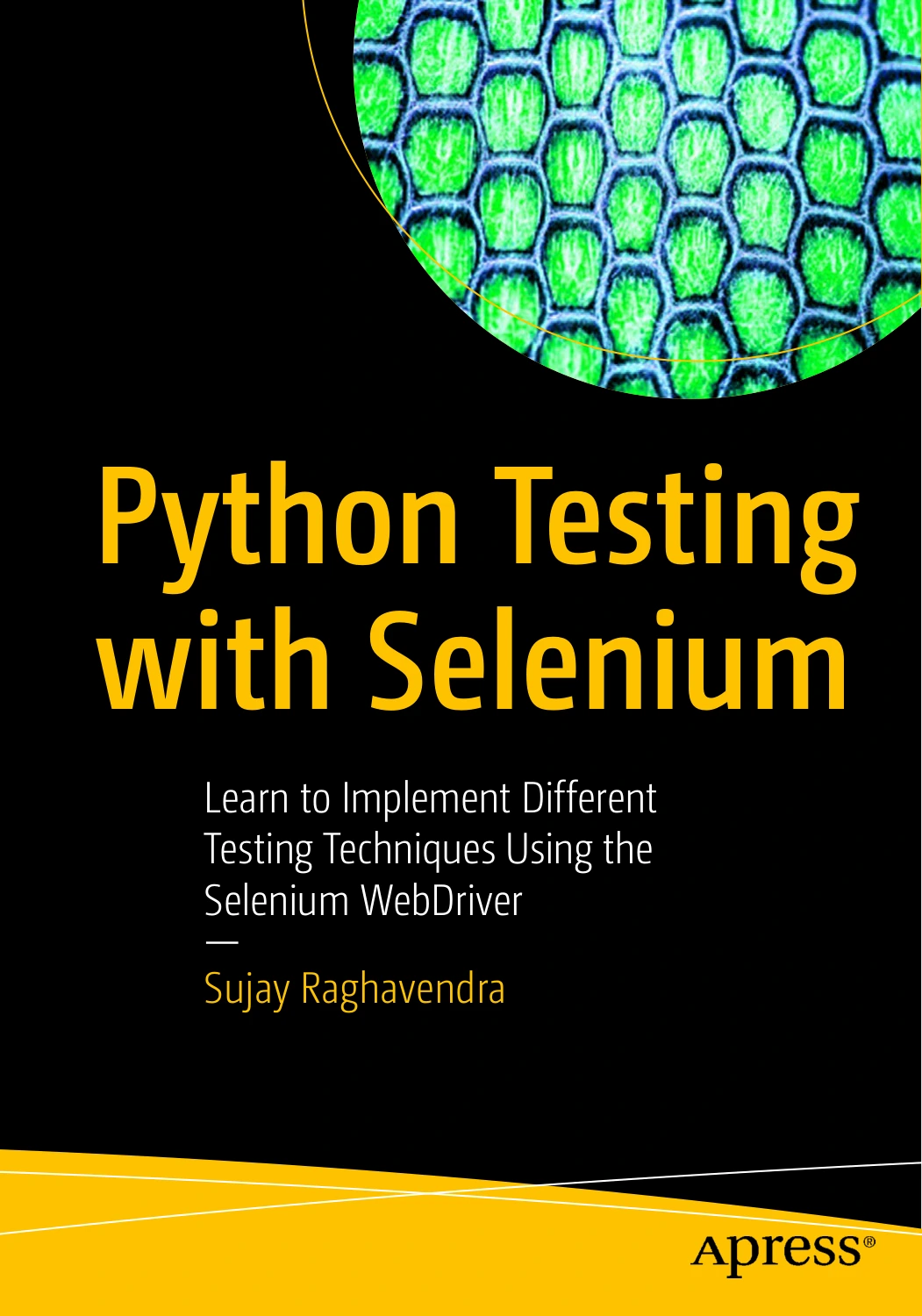
Learners with Python basics who want to study Selenium WebDriver and testing techniques.
If you want a project-oriented resource focused specifically on automation, Python Automation Crash Course: 3 Books in 1 covers topics described in its catalog listing such as file management, scheduling, email automation, web scraping, and APIs. Use its topic coverage to decide whether it matches your goal; you can still work through one small project at a time.
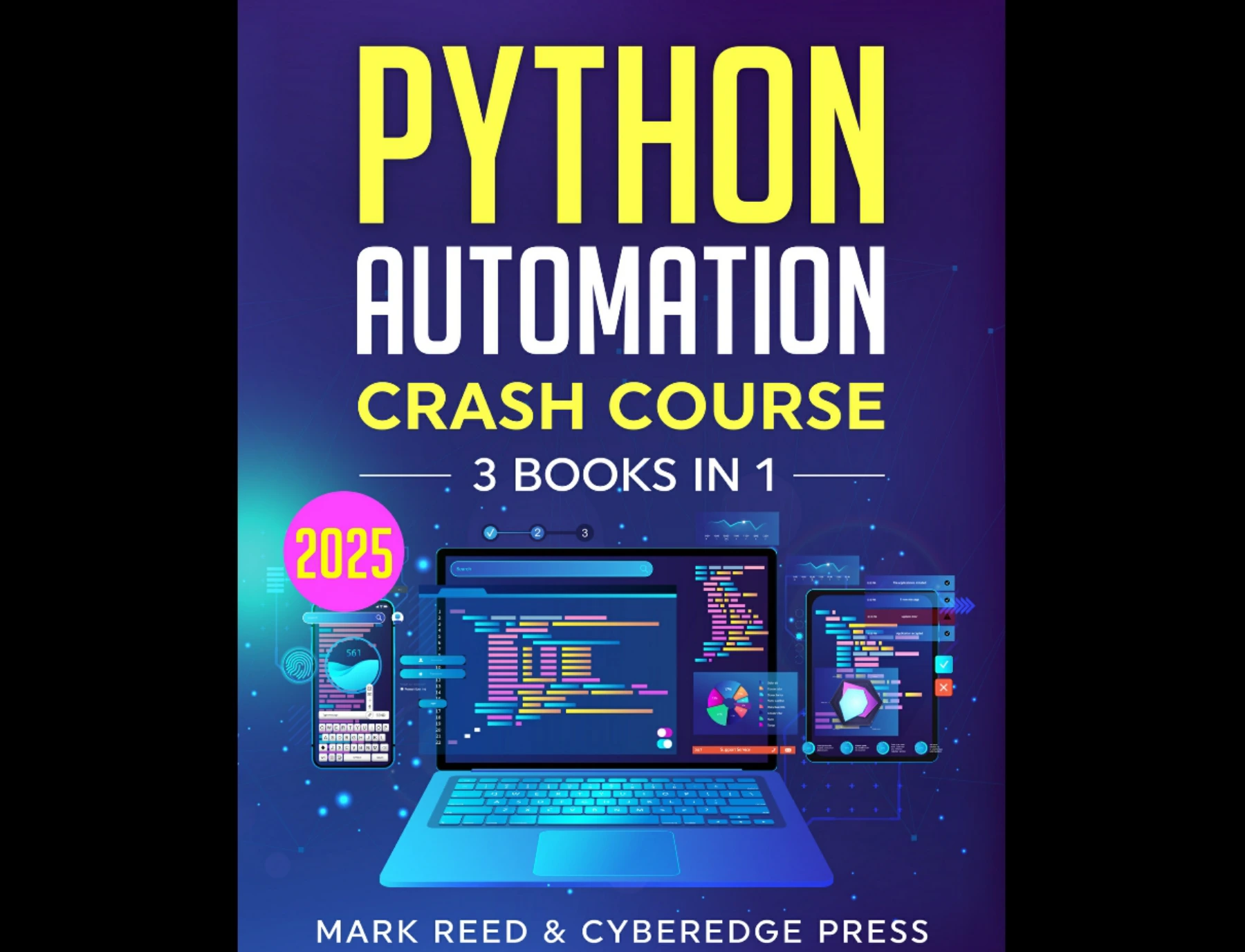
By Mark Reed
Learners looking for a broad automation resource covering several task types.
When Should You Add Packages and Virtual Environments?
Do not install a package just because a tutorial uses one. First check whether Python’s standard library already offers a suitable tool. Add an external package when a project needs a capability that the built-in tools do not provide conveniently, and make sure the package supports the Python version and project you are using.
When you do use third-party packages, learn pip to install them and venv to create an environment for a project. Separate virtual environments help keep one project’s package requirements from interfering with another’s, as described in the official virtual-environment documentation.
Work Safely Before Automating Important Tasks
Automation can repeat mistakes just as efficiently as it repeats correct actions. Before using a script on important files, accounts, or live systems, make the task reversible and inspect what the script intends to do.
- Use copies, sample data, or a test folder while developing.
- Print or log proposed changes before moving, renaming, or deleting files.
- Write results to a new file instead of overwriting the source during early tests.
- Check the output manually before increasing the amount of data.
- Be cautious with scripts that send messages, submit forms, change production data, or interact with live websites.
These habits are part of learning automation, not optional extras to add after a script has already caused trouble.
Common Beginner Mistakes to Avoid
- Starting with a framework before understanding Python: learn the language basics needed for your task first, then add specialized tools when there is a clear reason.
- Copying a script without understanding its effects: read each operation, especially code that writes, deletes, sends, or submits data. Try a smaller version and explain what each line does.
- Testing on the only copy of a file: use duplicates or sample data until the output is predictable.
- Ignoring errors: read the traceback, isolate a small example, and fix the cause rather than suppressing the message.
- Assuming every example fits every setup: check the Python version and package compatibility required by the resource or project you are following.
- Trying to automate too much at once: split a large workflow into small steps, verify each one, then combine them.
A Practical Learning Roadmap
Use this sequence as a flexible guide. Move faster through topics you already know, and spend more time on the ones your chosen project requires.
- Learn Python basics: variables, strings, lists, dictionaries, conditions, and loops.
- Practise functions and debugging: break a simple task into named steps and learn to interpret common errors.
- Work with files and data: practise paths and read or write a sample text or CSV file.
- Build one small, safe automation: choose a task such as cleaning a copy of a CSV or sorting duplicate files.
- Add tools only when needed: learn a relevant library,
pip, and project-specific virtual environments when the task calls for them. - Review and improve: check results, handle expected errors, and make the script easier to reuse.
The Python learning resources collection can help you compare available digital books by subject. Choose a resource that fits your current stage and project rather than collecting several books before writing any code.
Frequently Asked Questions
Do I need to know the command line before learning Python automation?
You can begin with basic Python without deep command-line knowledge. You will need to run your scripts somehow, and some projects or installation instructions use a terminal. Learn the small set of commands required for your setup as you encounter them; how much command-line knowledge you need depends on the task and environment.
What should I automate first?
Pick a frequent, low-risk task with clear inputs and outputs. Sorting copies of files or cleaning a sample CSV is easier to inspect than automating a live account or an important business workflow. Start with a version that shows its intended changes before it makes them.
When should I use a third-party Python package?
Use one when your project needs a capability that the standard library does not provide conveniently. Check the package’s compatibility and project instructions, and use a virtual environment to keep dependencies separate from other projects.
Should I learn browser automation as my first Python project?
Usually, first become comfortable with Python fundamentals and debugging, then move to browser automation if a website task or testing need makes it relevant. Browser interactions add their own setup and maintenance considerations, so they can distract from learning core Python when you are just starting.
Conclusion: Start Small, Then Follow the Task
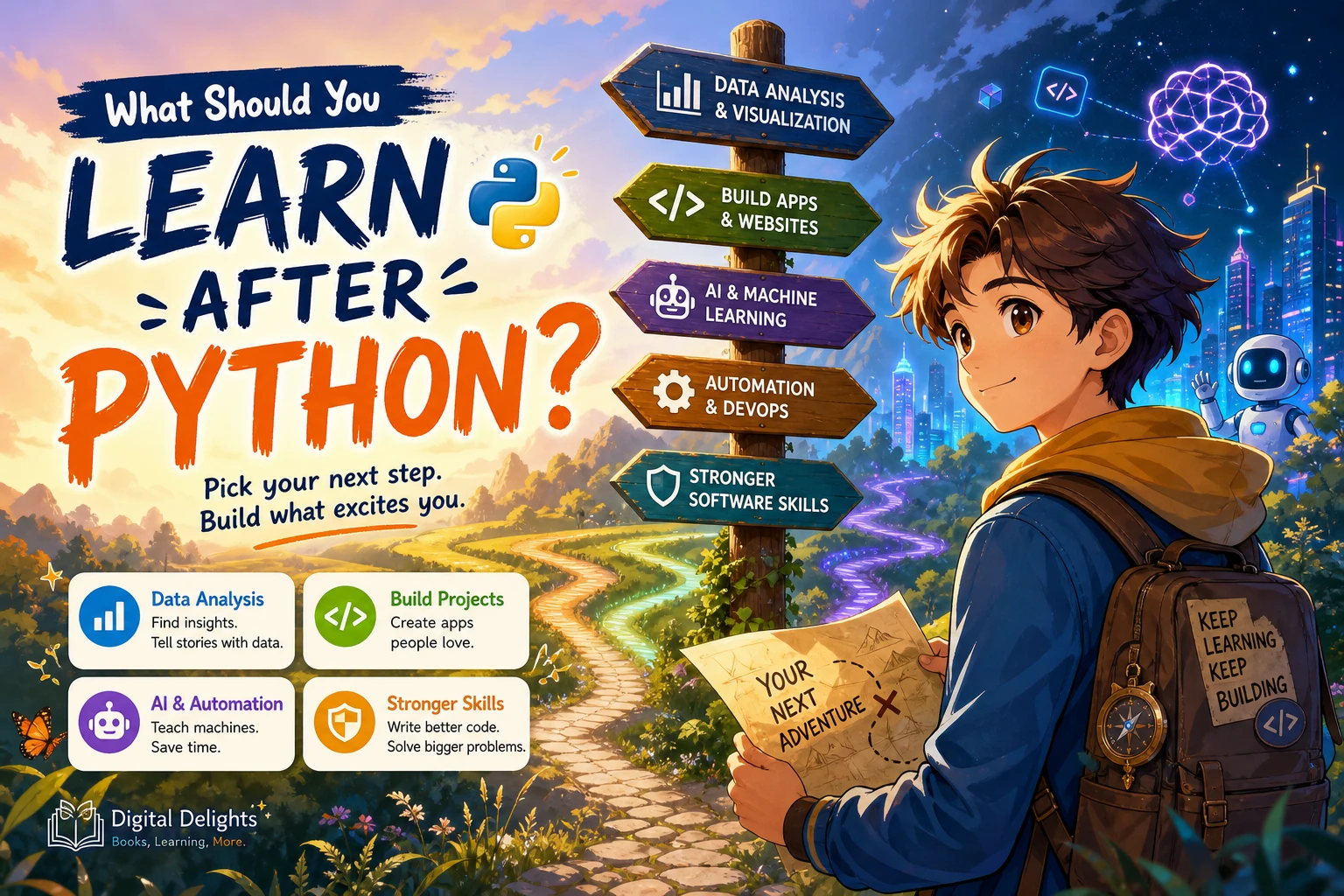
For Python automation for beginners, learn the core language before chasing specialized tools: practise data types, collections, control flow, functions, debugging, and file handling. Then choose one small project that solves a real problem, test it on copies or sample data, and expand only when the first version behaves as expected.
There is no single learning order that suits every automation goal. A spreadsheet workflow, a file-organizing script, and browser testing lead to different next steps. Build a foundation, let your project guide the specialization, and keep each change easy to verify.
Sources and Further Reading
- The Python Tutorial — official reference for language fundamentals and topics including control flow, functions, files, and exceptions.
- The Python Standard Library — official reference for built-in modules and tools.
- Virtual Environments and Packages — official guidance on project environments and packages.