

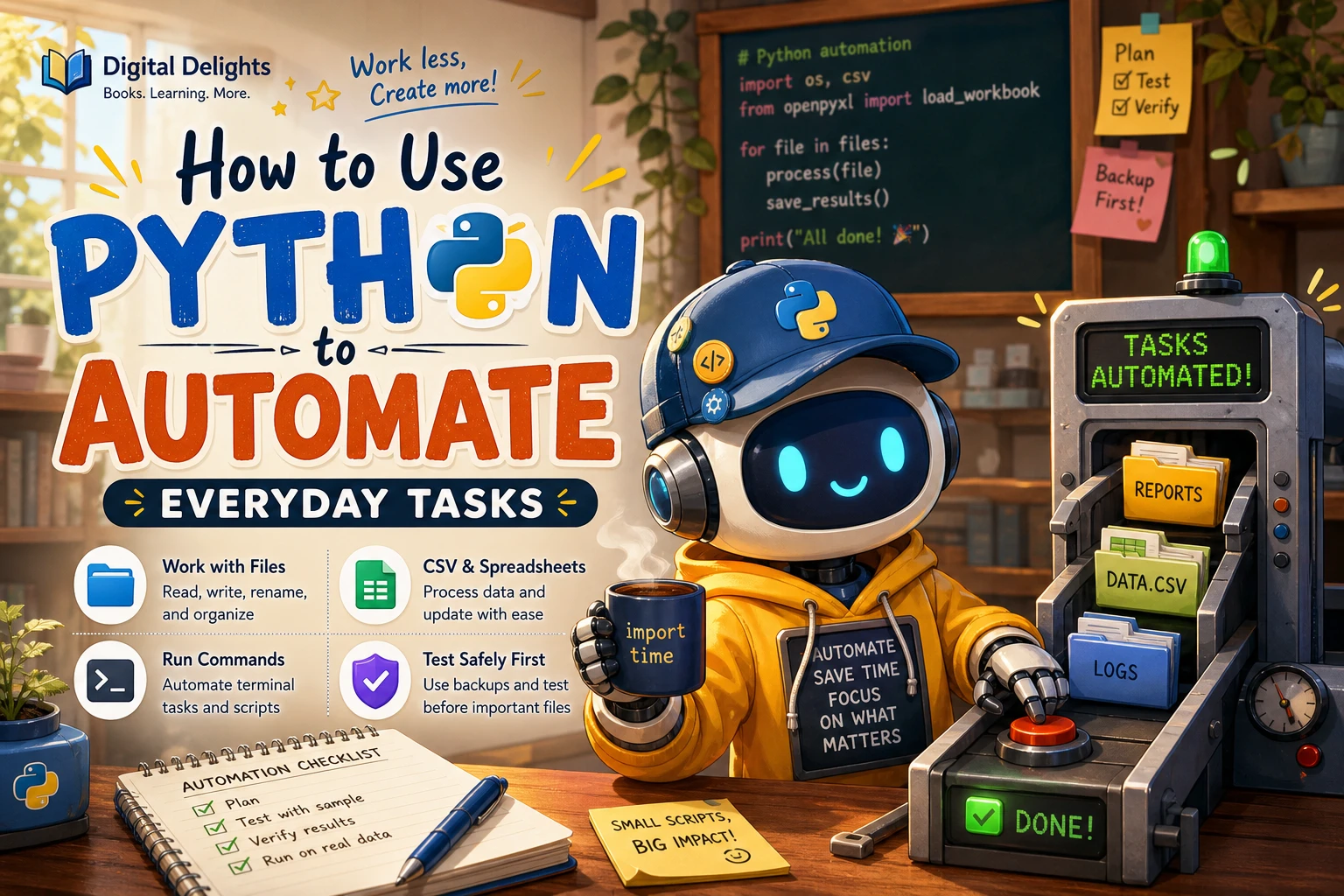
How to Use Python to Automate Everyday Tasks
Repeatedly sorting files, cleaning spreadsheet data, or copying reports by hand can make simple computer work feel tedious. Python can turn many of these rule-based routines into scripts that carry out the same steps consistently. You do not need to automate everything at once: choose one small task, define the expected result, and test the script on sample or copied files before using it on anything important.
This guide shows how to approach Python automation, with examples for listing files, processing CSV data, copying a file, and running a separate program. It also covers safer testing, error handling, and what to consider when you want a script to run regularly.
What everyday tasks can Python automate?
Python is a good fit when a task is repetitive, follows clear rules, and has identifiable inputs and outputs. For example, a script can list files that match a pattern, clean consistent fields in a CSV file, copy a report to another folder, or start another program with known arguments.
A useful first task is small enough that you can easily check the result. Examples include:
- Listing files with a particular extension in a folder.
- Preparing a copy of a CSV file with whitespace removed from its fields.
- Copying a file to a dated archive folder.
- Running a command-line program with a fixed set of options.
Tasks that depend on subjective decisions, changing website layouts, or complex interactions with graphical applications may need additional tools or a different approach. Start with work you can describe as a sequence of clear steps.
A simple workflow for Python automation
- Describe the task. Write down what files or information go in, what the script should do, and what should come out.
- Start with built-in tools. Python includes modules for working with file paths, CSV files, file operations, and external programs. Add a third-party package only if the task calls for it.
- Make a preview first. Before renaming, moving, overwriting, or deleting anything, print the planned actions or save results to a separate location.
- Test on sample data. Use copies of files and check both the expected results and what happens when an input is missing or malformed.
- Run on real files cautiously. Keep the original data until you have confirmed the script behaves as intended.
This process makes it easier to catch a mistaken path or assumption before it affects important files. For tasks that change data, keep the first version conservative: preview rather than modify, and write output to a new file or folder.
Python file automation with pathlib
The standard-library pathlib module provides an object-oriented way to work with filesystem paths, inspect files, and find items that match a pattern. For example, this script lists PDF files in a folder and its subfolders:
from pathlib import Path

folder = Path('reports')
for path in sorted(folder.rglob('*.pdf')):
    print(path)
The sorted() call is useful when you want the displayed results in a predictable order: recursive rglob() results are not guaranteed to arrive in a particular order. This example only prints paths; it does not move or alter files. That makes it a sensible first step before extending a script to organize files.
For example, before moving documents into folders by extension, first print each proposed source and destination. Check that the destination does not already contain a file with the same name, and decide how the script should handle that situation before enabling any changes.
Automate CSV tasks with Python
Python’s built-in csv module can read and write comma-separated data. The example below trims extra spaces from each field and writes the cleaned rows to a separate file. It assumes that the input CSV has a header row:
import csv

input_path = 'contacts.csv'
output_path = 'contacts_cleaned.csv'

with open(input_path, newline='', encoding='utf-8-sig') as source:
    reader = csv.DictReader(source)
    fieldnames = reader.fieldnames
    if not fieldnames:
        raise ValueError('The CSV needs a header row.')

    rows = [
        {key: (value.strip() if value else '') for key, value in row.items()}
        for row in reader
    ]

with open(output_path, 'w', newline='', encoding='utf-8') as destination:
    writer = csv.DictWriter(destination, fieldnames=fieldnames)
    writer.writeheader()
    writer.writerows(rows)

print(f'Wrote cleaned data to {output_path}')
Opening CSV files with newline='' follows the standard library’s guidance. The right encoding depends on the file: this example uses utf-8-sig when reading, which can accommodate a UTF-8 byte-order mark, and writes UTF-8 output. If the resulting characters look wrong, check the source file’s encoding rather than assuming every CSV uses the same one. See the official Python CSV documentation.
For spreadsheet workbooks in Excel format, the CSV module is not a substitute for a workbook-specific tool. If you already know basic Python and want to work with Excel files, Automating Excel with Python: Processing Spreadsheets with OpenPyXL focuses on tasks such as reading and editing workbooks, formatting cells, and working with charts.
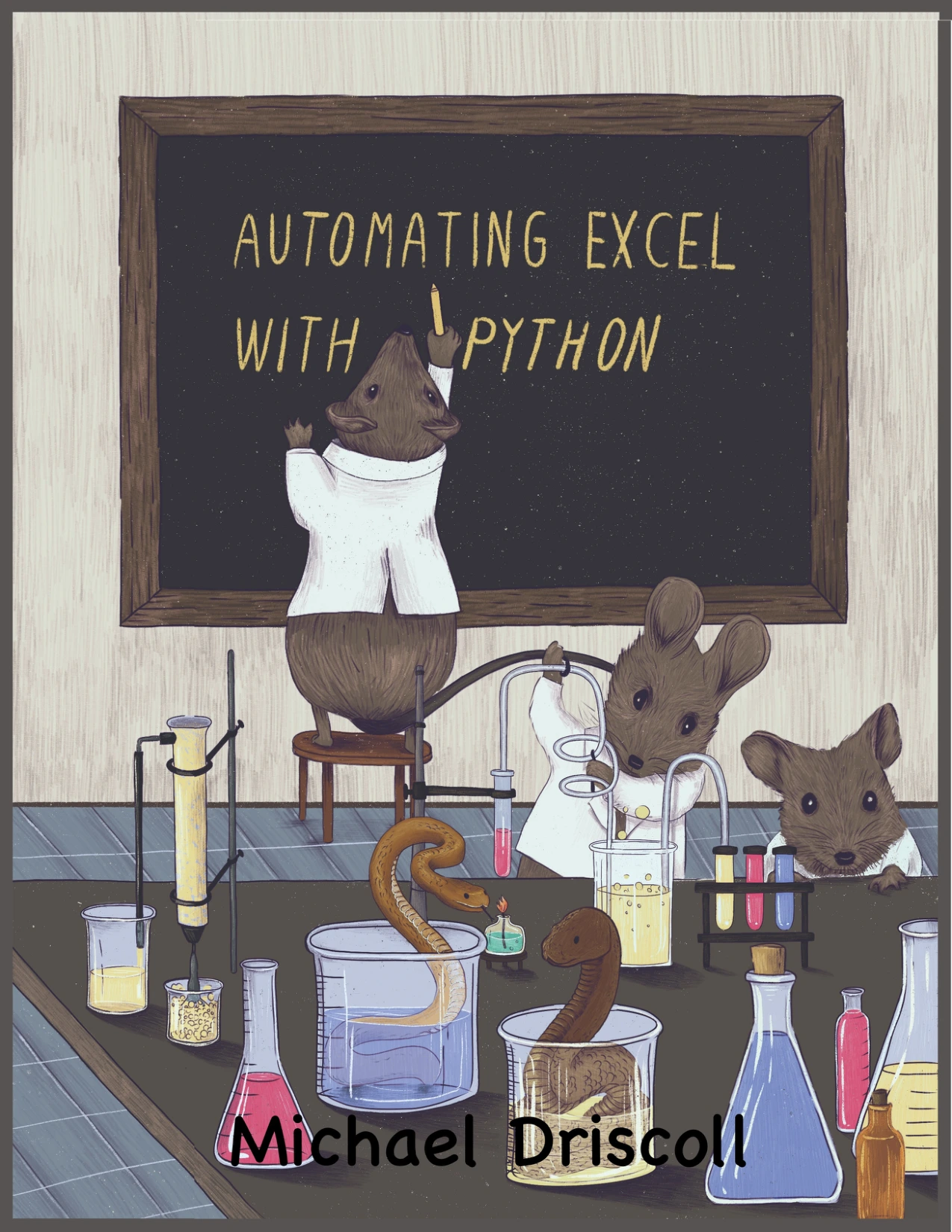
Automating Excel with Python: Processing Spreadsheets with OpenPyXL
Python users interested in reading, editing, formatting, and working with Excel spreadsheets.
Copy files with shutil
The standard-library shutil module includes high-level file-copying operations. A basic copy can look like this:
from pathlib import Path
import shutil

source = Path('reports/monthly.csv')
destination = Path('archive/monthly.csv')

destination.parent.mkdir(parents=True, exist_ok=True)
shutil.copy2(source, destination)
print(f'Copied {source} to {destination}')
Before running a copy script repeatedly, decide what should happen if the destination already exists. You may want to create a uniquely named backup, skip the copy, or deliberately replace the destination—but that choice should be explicit. Also note that Python’s copy functions do not preserve every kind of file metadata on every operating system. Consult the official shutil documentation if metadata preservation matters to your workflow.
Run another program with subprocess
Python can start a separate program using the subprocess module. Pass the program and its arguments as a list rather than building a command string:
import subprocess

result = subprocess.run(
    ['python', '--version'],
    check=True,
    text=True,
    capture_output=True,
)
print(result.stdout.strip() or result.stderr.strip())
With check=True, the call raises an error if the command exits unsuccessfully. In a real script, you should also decide how to report that error and what should happen next. The example uses a simple version command; commands that process files should be tested carefully, particularly if they can overwrite or remove data.
Avoid using shell=True with values that may contain untrusted input. The official subprocess documentation discusses security considerations and recommends run() for cases it can handle.
Make automation safer and easier to maintain
- Use a preview mode. Print planned changes before enabling moves, renames, or deletions.
- Keep inputs and outputs separate. Write cleaned data to a new file while you verify it.
- Handle expected problems. Consider missing files, inaccessible folders, empty CSVs, and failed external commands.
- Report what happened. Print a clear completion message or record which items were processed and which failed.
- Make ordering deliberate. Sort recursive file matches when repeatable order is important.
- Check paths and overwrite behavior. Confirm the script is looking in the intended folder and will not replace a file unexpectedly.
Readable scripts are easier to check than compact scripts full of unexplained shortcuts. Use meaningful variable names, keep one responsibility per function where practical, and leave a short note about assumptions such as the expected CSV columns or folder structure.
How to run an automation script regularly
Once a script works reliably by hand, you can look at running it on a schedule. The exact setup depends on your operating system and how Python is installed, so there is no single scheduling procedure that fits every computer. Before scheduling a script, test it in the same account and environment it will use: scheduled runs may not have the same working directory, permissions, or access to files as an interactive session.
Start with a low-risk task and make sure the script reports failures rather than silently appearing to succeed. Keep the script and its output in known locations, and decide how you will review logs or results. If the automation affects important records, retain a recoverable original or backup.
Common Python automation mistakes
- Testing on the only copy. Use sample data or duplicates until the result is verified.
- Assuming files are returned in a fixed order. Sort results when sequence matters.
- Ignoring CSV headers or encoding. Check the input format and choose an encoding that matches it.
- Overwriting files without noticing. Add an explicit check or use a separate output path.
- Building unsafe shell commands. Prefer argument lists with
subprocess.run()and review the security guidance before using a shell. - Scheduling before testing. Verify the script manually and check how it behaves in the environment where it will run.
Learn Python automation through practical projects
If you are new to programming and want examples centered on useful computer tasks, Automate the Boring Stuff with Python, 3rd Edition is described in the Digital Delights catalog as a beginner-focused, hands-on guide to practical automation, including file and data tasks. It may suit readers who want to learn programming concepts through everyday examples.
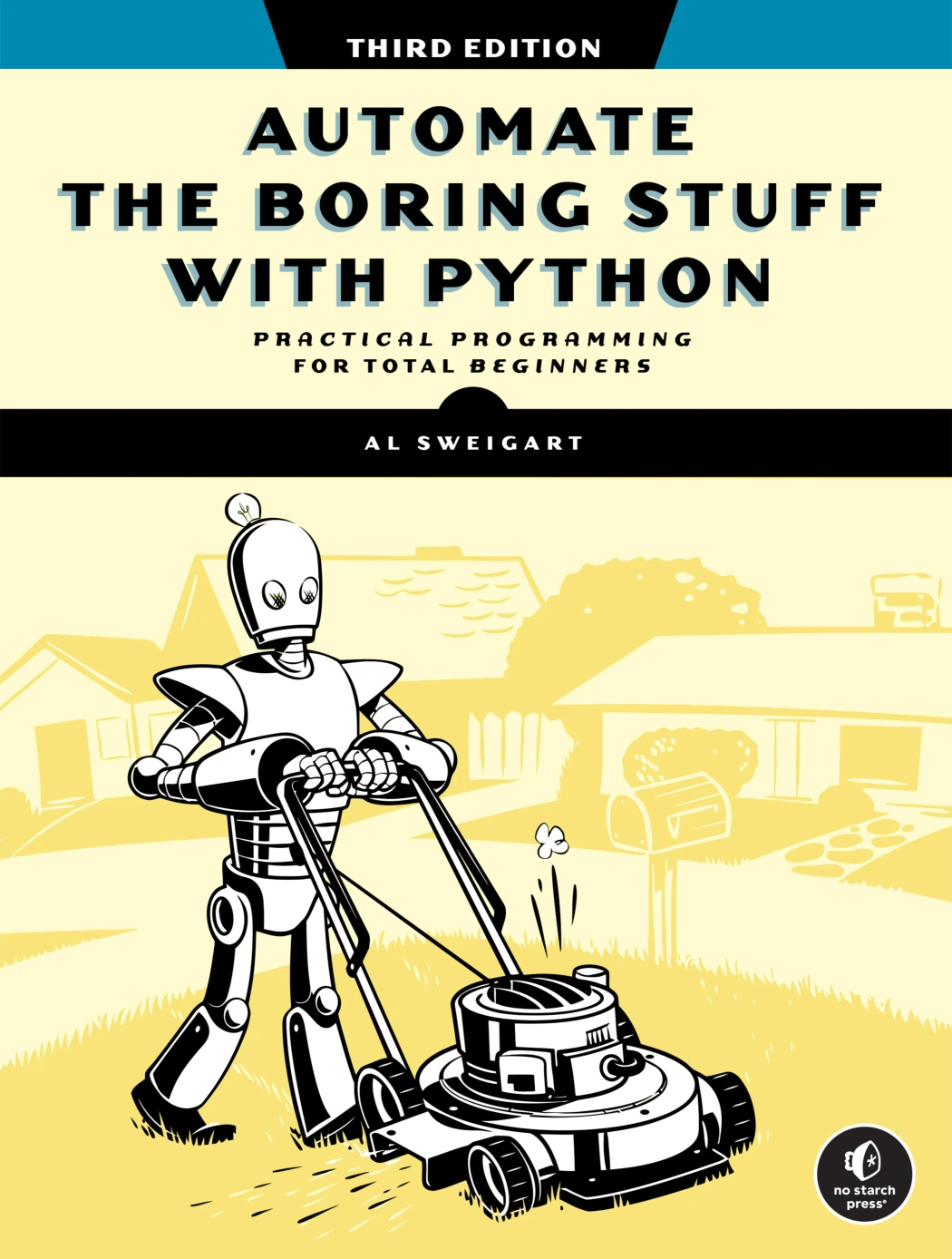
Automate the Boring Stuff with Python, 3rd Edition
By Al Sweigart
New programmers who want to learn through everyday computer tasks and examples.
For a task-focused resource specifically about spreadsheet workflows, the OpenPyXL book mentioned above covers reading, writing, editing, and formatting Excel workbooks. You can also browse Python books and learning resources to explore other Python topics.
Pick one routine you understand well, build a script that makes its actions visible, and test it on copies. When the results are dependable, you can decide whether it is worth expanding or running regularly.
Frequently asked questions
Do I need to know Python before automating tasks?
You need enough Python to understand the script’s inputs, actions, and outputs. A small task can be a useful learning project, but do not run code on important files until you can inspect what it will do and test it on copies.
Can Python automate Excel spreadsheets?
Yes. Python can work with CSV data using its built-in csv module. Excel workbooks have additional features beyond CSV, so workbook-specific tasks such as formatting cells or working with charts call for a suitable Excel library, such as OpenPyXL.
How can I run a Python script repeatedly?
You can run a script manually while developing it, then configure a scheduler supported by your operating system if recurring execution is appropriate. The setup varies by system; test permissions, file paths, and error reporting in the environment that will run the scheduled job.
Is Python automation safe for important files?
It can be used carefully, but a script can still make mistakes or behave differently from what you intended. Preview planned changes, test on sample or copied files, write outputs separately where possible, and make overwriting or deleting an explicit choice.