
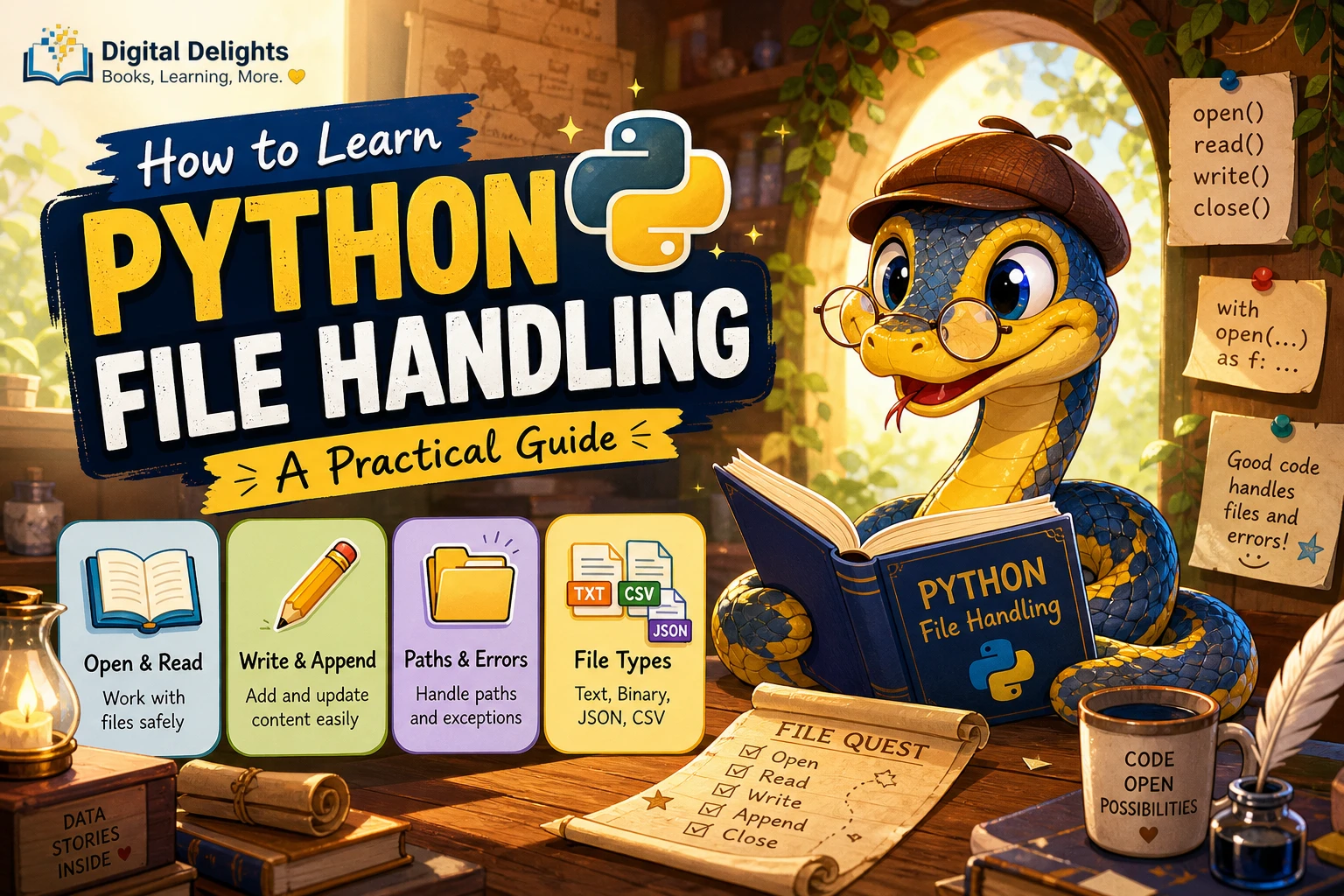
How to Learn Python File Handling
Python file handling is the skill of opening files, reading or changing their contents, and closing them safely. Start with open() inside a with statement, learn the difference between read, write, and append modes, and practise with a small text file. The most important safety habit is to understand what a mode does before opening a file: w replaces existing content, while a adds content at the end.
This guide walks through text files, paths, errors, larger files, binary data, JSON, and CSV. You will also find a short practice task to connect the ideas. The examples use UTF-8 explicitly for text, a useful way to avoid relying on different computers’ default encodings.
What should you know before learning Python file handling?
You do not need advanced Python to begin. It helps to recognise variables, strings, for loops, and basic try/except blocks. If you can store a filename in a variable and loop over a collection, you already have enough background for the first examples.
If those ideas are still new, learn them alongside file handling rather than trying to memorise every file method first. A beginner resource such as Python Programming for Beginners covers Python fundamentals as well as text files, CSV, JSON, and exception handling.
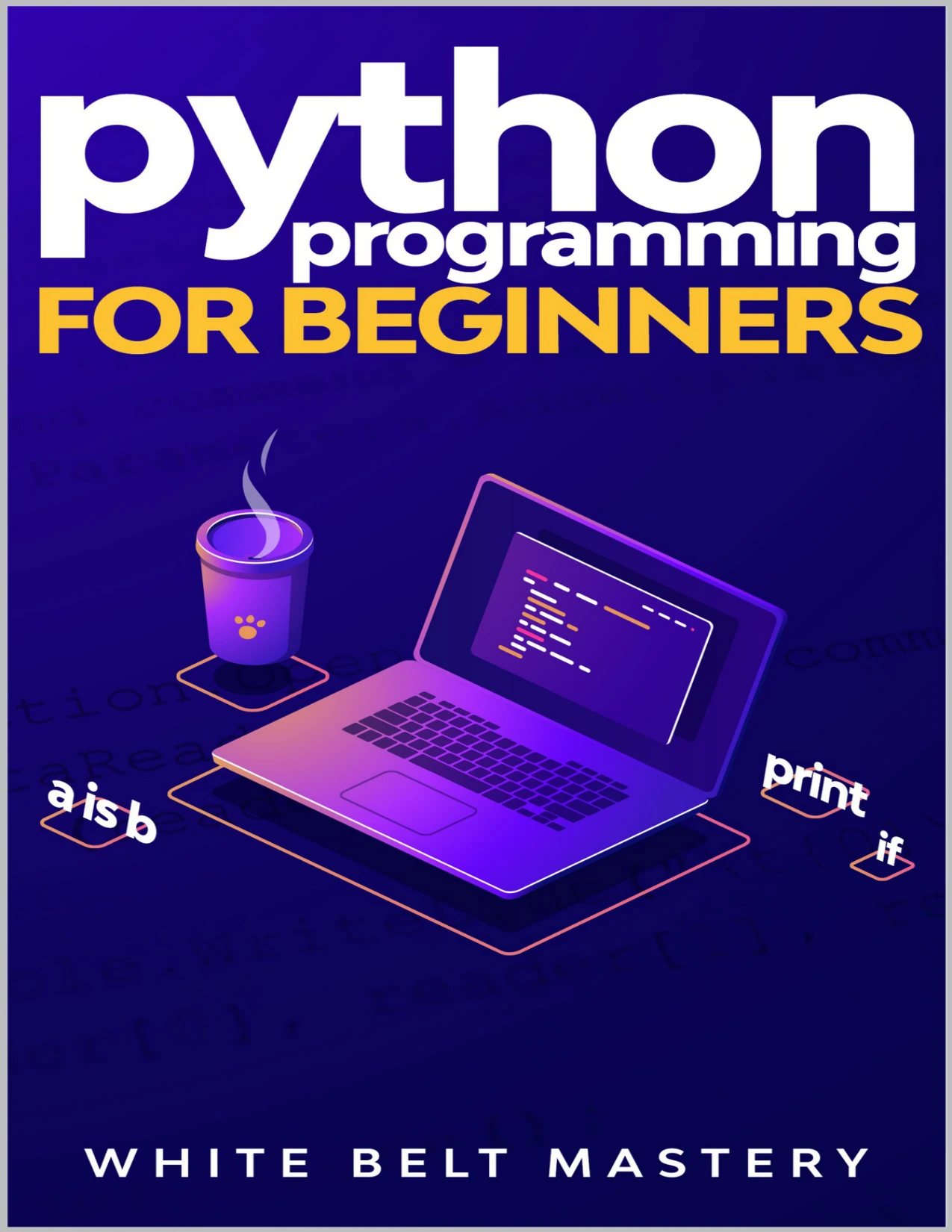
Beginners looking for a step-by-step Python guide that includes file operations and common data formats.
Open files safely with with open()
Python’s built-in open() function gives your program access to a file. Put it in a with statement so Python handles closing the file when the indented block ends, including when an error interrupts the work.
with open("notes.txt", "r", encoding="utf-8") as file:
    contents = file.read()

print(contents)
Here, file is the handle you use to read from the opened file. The filename can be a path as well as a simple name. The encoding argument makes the text encoding explicit; Python’s tutorial notes that text-mode defaults can vary by platform and recommends UTF-8 unless another encoding is needed. See the official Python input and output tutorial.
Choose a file mode that matches your task
"r"opens a file for reading. This is the default mode. The file must already exist."w"opens a file for writing. It creates a file if necessary, but replaces existing contents if the file is already there."a"opens a file for appending. New content is added at the end rather than replacing the existing contents."b"selects binary mode. Combine it with another mode, such as"rb"for reading bytes or"wb"for writing bytes.
Before using "w", check that replacing the file is intended. If you want to preserve the old text and add a line, use "a" instead. These mode behaviours and the with pattern are described in the Python documentation on input and output.
Read and write text files
For a small text file, read() returns its contents as one string. You can also read a file a line at a time, which is often more appropriate when the file might be large.
Read a whole file
with open("notes.txt", "r", encoding="utf-8") as file:
    text = file.read()

print(text)
Use this approach when the file is small enough to fit comfortably in memory and you need the contents together, for example to search or transform the complete text.
Read one line at a time
with open("notes.txt", "r", encoding="utf-8") as file:
    for line in file:
        print(line, end="")
Looping over the file processes it incrementally. By contrast, calling read() without a size reads the entire file into memory. The official Python input and output tutorial explains these reading options.
Write new content carefully
message = "File handling practice is underway.\n"

with open("practice.txt", "w", encoding="utf-8") as file:
    file.write(message)
This creates practice.txt if it does not exist, but clears its existing contents before writing if it does. To add a line without clearing the file, change "w" to "a":
with open("practice.txt", "a", encoding="utf-8") as file:
    file.write("This line is appended.\n")
When writing multiple lines, include newline characters where you want line breaks. Text files do not automatically put each call to write() on a separate line.
Use pathlib to work with file paths
A path identifies where a file is stored. A simple name such as "notes.txt" is a relative path: Python looks for it relative to the program’s current working directory. That directory is not always the same as the folder containing your script, so a file-not-found error can result when you run a program from a different location.
pathlib.Path provides an object-oriented way to build and inspect paths across operating systems. For example:
from pathlib import Path

path = Path("data") / "notes.txt"

with path.open("r", encoding="utf-8") as file:
    text = file.read()
The slash operator joins path parts using the appropriate path behaviour for the system. You can also ask whether a path exists with path.exists(). For more on path objects and their methods, see the official pathlib reference.
Handle common file errors
Files may be missing, inaccessible, or encoded differently than expected. Handle errors when your program needs to respond usefully instead of stopping with an unexplained traceback.
from pathlib import Path

path = Path("data") / "notes.txt"

try:
    with path.open("r", encoding="utf-8") as file:
        text = file.read()
except FileNotFoundError:
    print(f"Could not find: {path}")
except PermissionError:
    print(f"Permission denied: {path}")
FileNotFoundError means the requested file or path could not be found. PermissionError means the program does not have the required access. Catch the specific errors you can sensibly handle; avoid a broad except: that might hide unrelated bugs.
For larger files, prefer iterating over the file rather than loading everything at once. If the program needs to count lines, for instance, it can update a counter as it reads each line instead of keeping the whole file in a string.
Understand text, binary, JSON, and CSV files
Text mode works with strings. Binary mode works with bytes, the raw byte values used by formats such as images, audio, and many other non-text files. Use binary mode when you need to preserve or process those bytes rather than decode them as readable text.
with open("image.png", "rb") as file:
    first_bytes = file.read(16)
Do not add encoding when opening a file in binary mode. Encoding is for converting between text strings and bytes; binary reads return bytes directly.
Save lists and dictionaries with JSON
JSON is a common text format for storing structured data such as lists and dictionaries. Python’s json module converts between Python data and JSON text.
import json

settings = {"theme": "dark", "show_tips": True}

with open("settings.json", "w", encoding="utf-8") as file:
    json.dump(settings, file, indent=2)

with open("settings.json", "r", encoding="utf-8") as file:
    loaded_settings = json.load(file)
As with any write operation, "w" replaces the file if it already exists. The Python tutorial covers JSON serialization and UTF-8 in its input and output section.
Use CSV for rows and columns
CSV is commonly used for tabular data, such as rows of names and scores. Python’s csv module can read and write this format. When opening a CSV text file, use newline="" as shown in the module’s recommended usage:
import csv

with open("scores.csv", "r", newline="", encoding="utf-8") as file:
    reader = csv.reader(file)
    for row in reader:
        print(row)
Start with a small file and inspect the rows you get back before building more complex processing around them.
Practise Python file handling with a small exercise
Try creating a program that reads a text file, counts its lines, and writes a short summary to another file. This task practises opening, iteration, counting, and writing without requiring a large project.
- Create a small file named
journal.txtwith several lines of text. - Open it in read mode using
withand UTF-8 encoding. - Count each line as you iterate through the file.
- Write the total to
summary.txt, using write mode only if replacing that summary is intended. - Try running the program when
journal.txtis missing, and handle that case clearly.
Once this works, adapt it to append a dated entry to a log file, or load a list of records from JSON. If you want a structured introduction that also includes file operations, the catalog’s step-by-step Python programming resource covers files, CSV, JSON, and exceptions.
Common Python file handling mistakes to avoid
- Opening with
"w"without checking: it replaces existing content. Use append mode or another approach when you need to preserve what is already there. - Leaving a file unclosed: use
withso the file is closed when the block finishes. - Relying on an implicit text encoding: specify
encoding="utf-8"unless you know the file requires something else. - Assuming a relative path points beside your script: it is resolved from the current working directory. Use
pathlibto make path handling clearer. - Reading a huge file all at once: iterate line by line when you can process the file incrementally.
- Treating binary data as text: use binary mode for bytes and text mode for decoded strings.
Frequently asked questions about Python file handling
How do I read a file in Python?
Use with open("filename.txt", "r", encoding="utf-8") as file:, then call file.read() for a small file or loop over file to process it one line at a time.
What is the difference between "w" and "a"?
"w" writes from the beginning and replaces existing contents. "a" adds new content at the end of the existing file, creating the file if needed.
Why should I specify UTF-8?
Text-mode encoding defaults can vary by platform. Specifying UTF-8 makes your program’s intended text encoding explicit. If a particular file uses another encoding, use the encoding that matches that file.
When should I use binary mode?
Use binary mode for data that should be handled as bytes rather than decoded text, such as image files. Add b to the mode, such as "rb" to read.
How can I avoid loading a large file into memory?
Iterate over the opened file one line at a time and process each line as it arrives. Avoid calling read() without a size when the whole file may be too large to hold in memory.
What should I learn after basic text files?
Practise paths and common file errors, then explore JSON for structured data and CSV for tables. Keep using with, explicit text encoding, and careful mode selection as you move to new formats.
A safe way to build file-handling skills
Learn Python file handling by working from small text files toward real-world formats. First practise reading, writing, and appending with with open(). Then add paths with pathlib, handle likely errors, and choose line-by-line processing when a file may be large. Finally, try JSON or CSV when your data has structure.
Keep one rule in mind whenever you open a file: know whether the mode reads, replaces, appends, or handles bytes. That simple check, combined with explicit UTF-8 for text and safe file closing, makes a reliable foundation for your next Python project.