

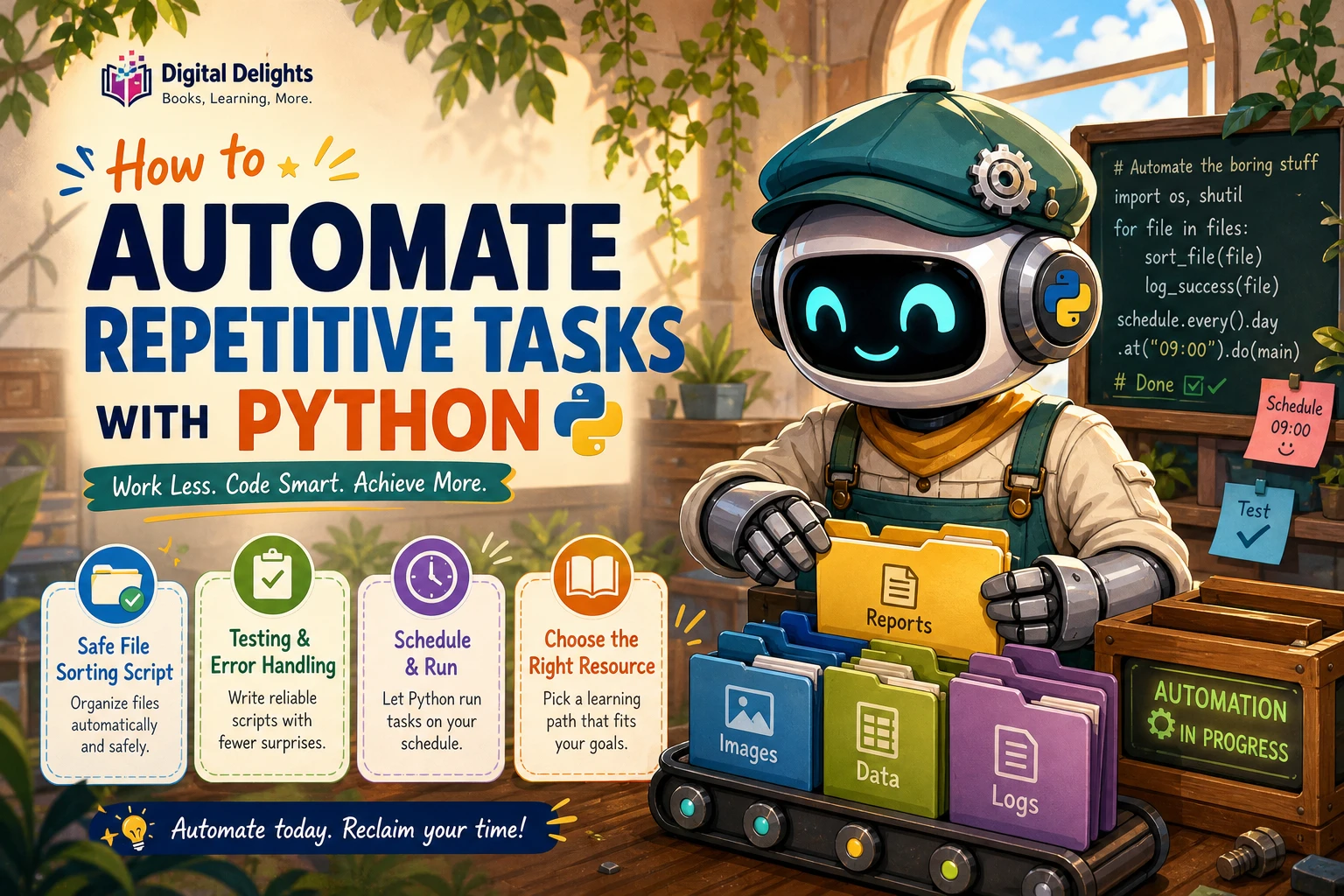
How to Automate Repetitive Tasks with Python
If you repeatedly rename files, sort downloads, clean spreadsheet data, or run the same checks, Python can turn those steps into a script. The practical starting point is simple: choose one predictable task, write down its rules, automate a small part, and test the result before allowing the script to make changes.
To automate repetitive tasks with Python, you do not need to begin with a large application or a collection of add-on packages. Start with a task you understand, use Python’s built-in tools where they fit, and add safeguards such as a dry run and a backup. This guide walks through that process with a file-organization example, then explains how to make a script safer and easier to run again.
What makes a task suitable for automation?
Good first projects are repetitive, rule-based, and easy to check. If you can describe the task as a sequence of clear instructions—find these files, apply this rule, put the results there—it may be a reasonable candidate.
Before writing code, estimate whether the script is worth creating and maintaining. Consider how often the task occurs, how long it takes by hand, how many exceptions it has, and how costly a mistake would be. There is no universal point at which automation pays off; the answer depends on your own workflow.
- Good starting tasks: sorting files by type, creating folders, preparing a recurring report, or checking a set of filenames.
- Tasks that need more care: deleting or overwriting files, sending messages, changing important records, or acting on data with many exceptions.
- Pause before automating: if you cannot explain the decision rules consistently, clarify the process first.
Choose the simplest tool that fits
For basic file and folder work, Python’s standard library may be enough. Modules such as pathlib and shutil can help you inspect paths and perform common file operations without installing a separate package. For spreadsheet work, a task may call for a specialist package; for a service or website, an API or command-line tool may be an option. The best choice depends on the task and the available interface.
- Use built-in Python tools for straightforward file handling and other common operations.
- Consider a third-party package when you need capabilities that are not covered conveniently by the standard library.
- Look for an API or command-line interface when an application provides one and it suits your workflow.
- Use GUI automation selectively. Automating clicks can depend on screen layout and application state, so assess whether that approach is appropriate for your particular task.
When a project does need external packages, keep them isolated in a virtual environment rather than mixing them into every Python project. The official Python documentation explains package installation and virtual environments at Installing Python modules.
A beginner Python automation example: sort PDF files
This example moves PDF files from a Downloads folder into a subfolder named PDFs. It uses Python’s standard library and starts in dry-run mode: the script prints what it would do but does not move anything. It also skips a file if a file with the same name is already in the destination folder.
from pathlib import Path
import shutil

source_dir = Path.home() / "Downloads"
destination_dir = source_dir / "PDFs"
dry_run = True

if not source_dir.is_dir():
    raise FileNotFoundError(f"Folder not found: {source_dir}")

pdf_files = list(source_dir.glob("*.pdf"))

if not dry_run:
    destination_dir.mkdir(exist_ok=True)

for source_file in pdf_files:
    destination_file = destination_dir / source_file.name

    if destination_file.exists():
        print(f"Skipping; destination already exists: {destination_file.name}")
        continue

    if dry_run:
        print(f"Would move: {source_file.name} -> PDFs/{source_file.name}")
    else:
        try:
            shutil.move(str(source_file), str(destination_file))
            print(f"Moved: {source_file.name}")
        except OSError as error:
            print(f"Could not move {source_file.name}: {error}")
How the example works
Path.home()locates the current user’s home folder, and the script assumes that a folder calledDownloadsis inside it.glob("*.pdf")selects PDF files directly inside Downloads; it does not search through nested folders.- The destination check avoids moving a file when a same-named file already exists in the target folder.
- With
dry_run = True, the script prints planned moves. It creates the destination folder and moves files only after you change this setting toFalse. - The
try/exceptblock reports a file-operation error instead of stopping without an explanation.
Folder names and locations can differ between computers. Check that Downloads is the correct path on your machine before running the script. You can also change "*.pdf" to another file pattern, but keep the selection as narrow as possible while testing.
Test the script before it changes anything
Automation is only useful when its assumptions match the real files and data. Begin with a small test set and compare the script’s output with what you intended. For a file-moving task, check each proposed source and destination before turning off dry-run mode.
- Use copies or a backup. Test on sample files rather than the only copy of important material.
- Start with a dry run. Print planned actions before moving, renaming, overwriting, or deleting anything.
- Limit what the script can select. Use a specific folder, filename pattern, or other clear condition rather than acting on an entire drive.
- Check collisions and exceptions. Decide what should happen when a destination already exists or a file cannot be accessed.
- Review results after a small run. Confirm that the outcome is correct before processing a larger set.
Python’s shutil documentation notes that file-copy functions do not preserve all metadata on every platform. If permissions or other metadata matter to your workflow, verify the result explicitly rather than assuming it was preserved: Python shutil documentation.
Make your automation repeatable
A script becomes easier to rely on when its rules are visible and its results are reviewable. Keep important settings—such as source folder, file pattern, and dry-run mode—near the top of a small script. Use descriptive names and print or record what the program did, especially when it processes many files.
- Handle expected errors: report missing folders, inaccessible files, and other likely problems clearly.
- Keep a useful record: for recurring jobs, consider Python’s
loggingmodule so you can review events and errors later. - Separate rules from actions: first identify which items match; then perform the changes only after the selection is checked.
- Schedule only after testing: once a script behaves as expected when run manually, use your operating system’s scheduling tools if regular execution is useful.
- Re-test after changes: a renamed folder, changed data format, or updated application can invalidate old assumptions.
If a script launches an external program, avoid assuming that a command or executable behaves identically on every operating system. Python’s subprocess documentation describes platform-dependent details and recommends passing command arguments as a sequence: Python subprocess documentation.
Common mistakes to avoid
- Automating an unclear process: write down the rules and exceptions before coding. Otherwise, the script may repeat a misunderstanding consistently.
- Testing on important files first: use copies or a small test folder until you have reviewed the outcome.
- Assuming filenames or data are uniform: check for missing values, unexpected extensions, duplicate names, and unusual formats.
- Installing packages without a need: begin with built-in tools when they are sufficient; isolate extra dependencies when you do need them.
- Letting a script silently change data: provide visible output, logging, or a review step for consequential actions.
- Building too much too soon: automate one narrow task first, then extend it when the basic version is reliable.
Choose a learning resource that matches your project
A small personal project is often a useful way to learn: sort a sample folder, standardize a batch of filenames, or prepare a repeatable spreadsheet task. Choose a resource based on the kind of work you want to automate rather than trying to study every Python topic at once.
| Learning need | Catalog resource | Why it may fit |
|---|---|---|
| Practical automation as a beginner | Automate the Boring Stuff with Python, 3rd Edition | The catalog describes a beginner-focused guide with practical projects, file operations, spreadsheets, web scraping, email, and command-line programs. |
| Automating spreadsheet work as an Excel user | Python for Excel Users: Know Excel? You Can Learn Python | This resource introduces Python fundamentals through a spreadsheet-oriented perspective and covers automation and data handling. |
| Scripts for systems administration | Mastering Python Scripting for System Administrators | The catalog describes coverage of Python foundations alongside command-line scripting, debugging, testing, and administrative automation. |
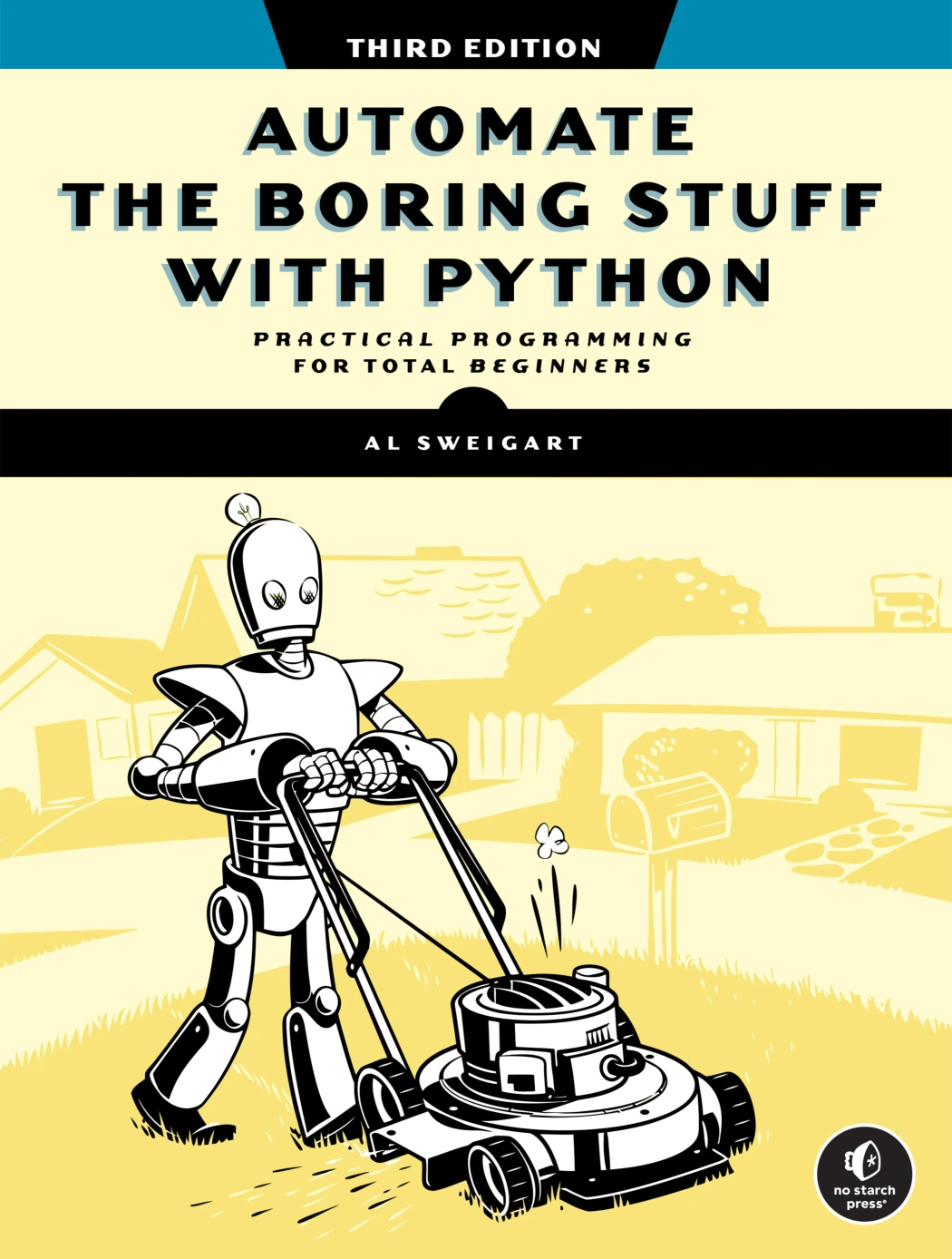
Automate the Boring Stuff with Python, 3rd Edition
By Al Sweigart
New programmers seeking practical projects involving file operations, spreadsheets, web tasks, and more.
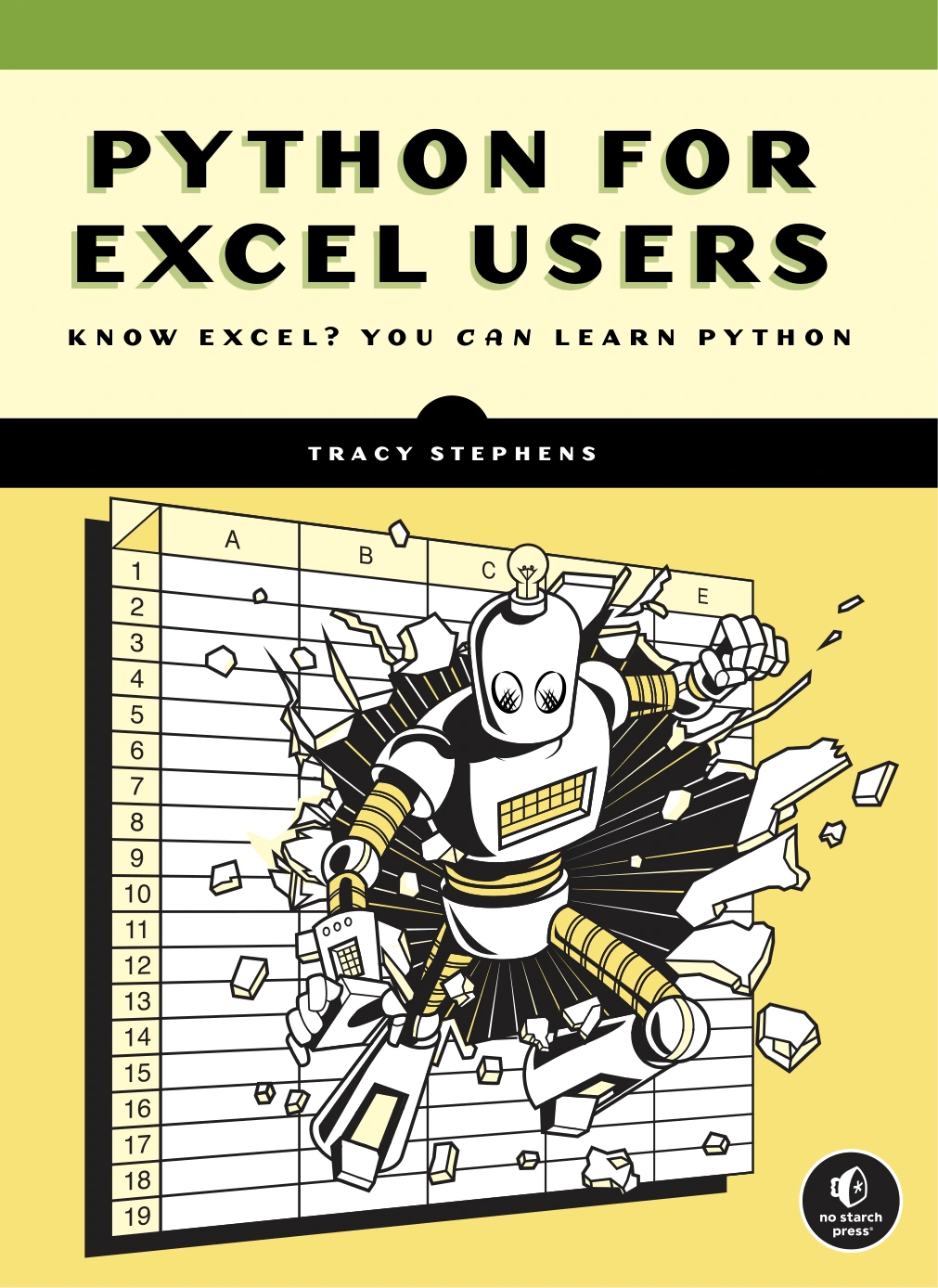
Python for Excel Users: Know Excel? You Can Learn Python
Excel users who want to learn Python through familiar spreadsheet concepts and data tasks.
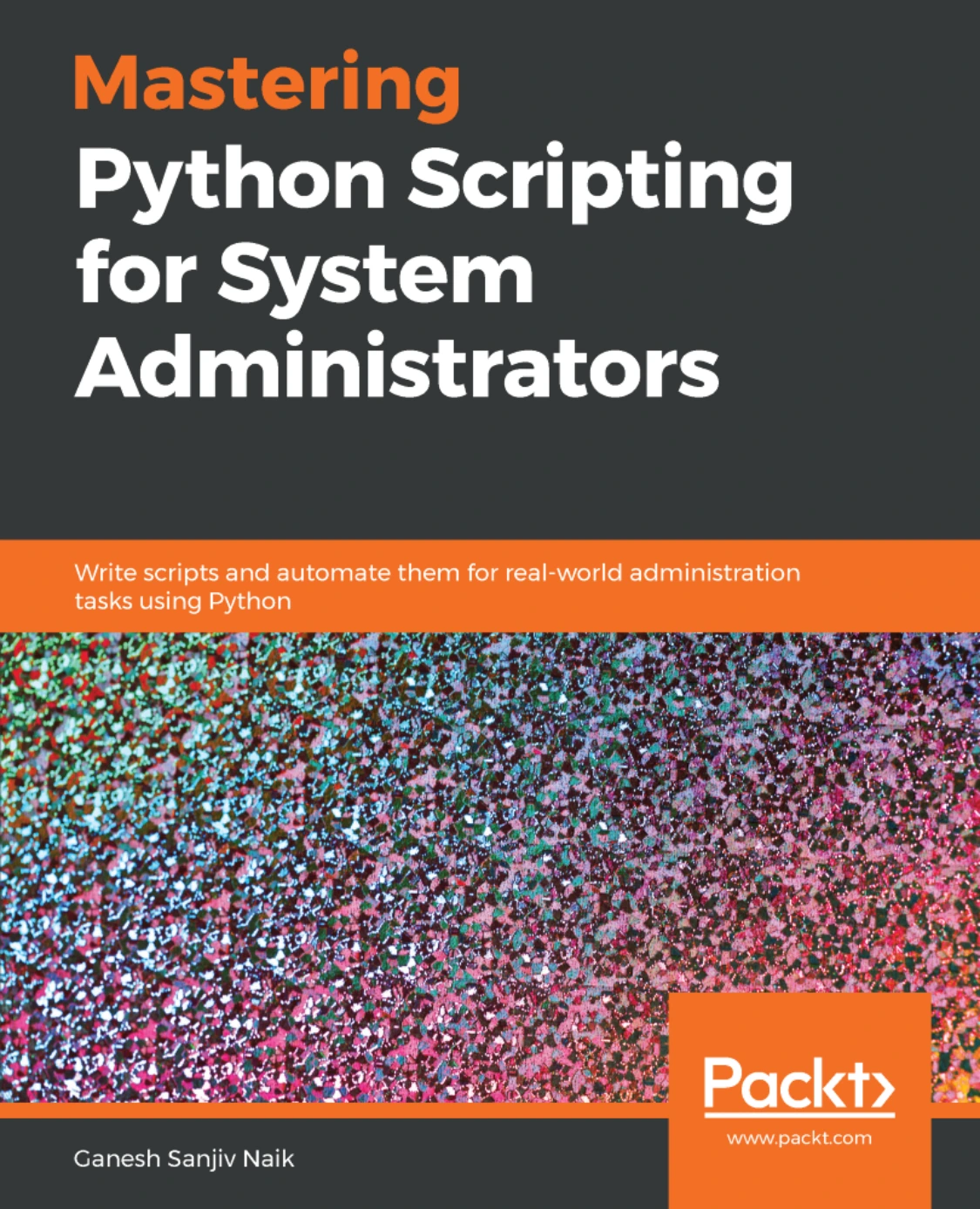
Mastering Python Scripting for System Administrators
System administrators looking for Python foundations, scripting, debugging, testing, and automation topics.
These are different paths rather than a ranking. For a broader browse, visit the Digital Delights Python books and resources category.
Frequently asked questions
Do I need to install packages to automate tasks with Python?
Not always. Many basic file tasks can be handled with Python’s standard library. Install an additional package only when your task needs capabilities that built-in tools do not provide conveniently, and consider using a virtual environment for that project.
How can I run a Python automation script regularly?
First run and test it manually, including its error handling and output. If it is reliable and the task needs to recur, you can schedule it with the scheduling tools available on your operating system. Check that the scheduled environment can find the right Python installation, files, and any required packages.
Should I automate clicks or use an API or command-line tool?
There is no single best approach for every task. Check whether the application provides an API or command-line interface that fits your needs; GUI automation may still be appropriate in some cases. Compare the options for your specific workflow and test the chosen method, since the available sources do not establish a universal reliability ranking.
How do I know if a task is worth automating?
Consider how often you perform it, the manual effort involved, the effort to build and maintain the script, and the consequences of an error. Estimate those factors for your own situation instead of assuming automation will always save time.
Start small, then make it dependable
The most manageable way to automate repetitive tasks with Python is to choose a clear, low-risk job and translate its rules into a small script. Begin with built-in tools, preview actions before making changes, test on copies, and keep the script’s assumptions easy to inspect. Once the result is dependable, decide whether scheduling, logging, or a more specialized tool would genuinely help.