
Python Automation Roadmap: A Practical Learning Path
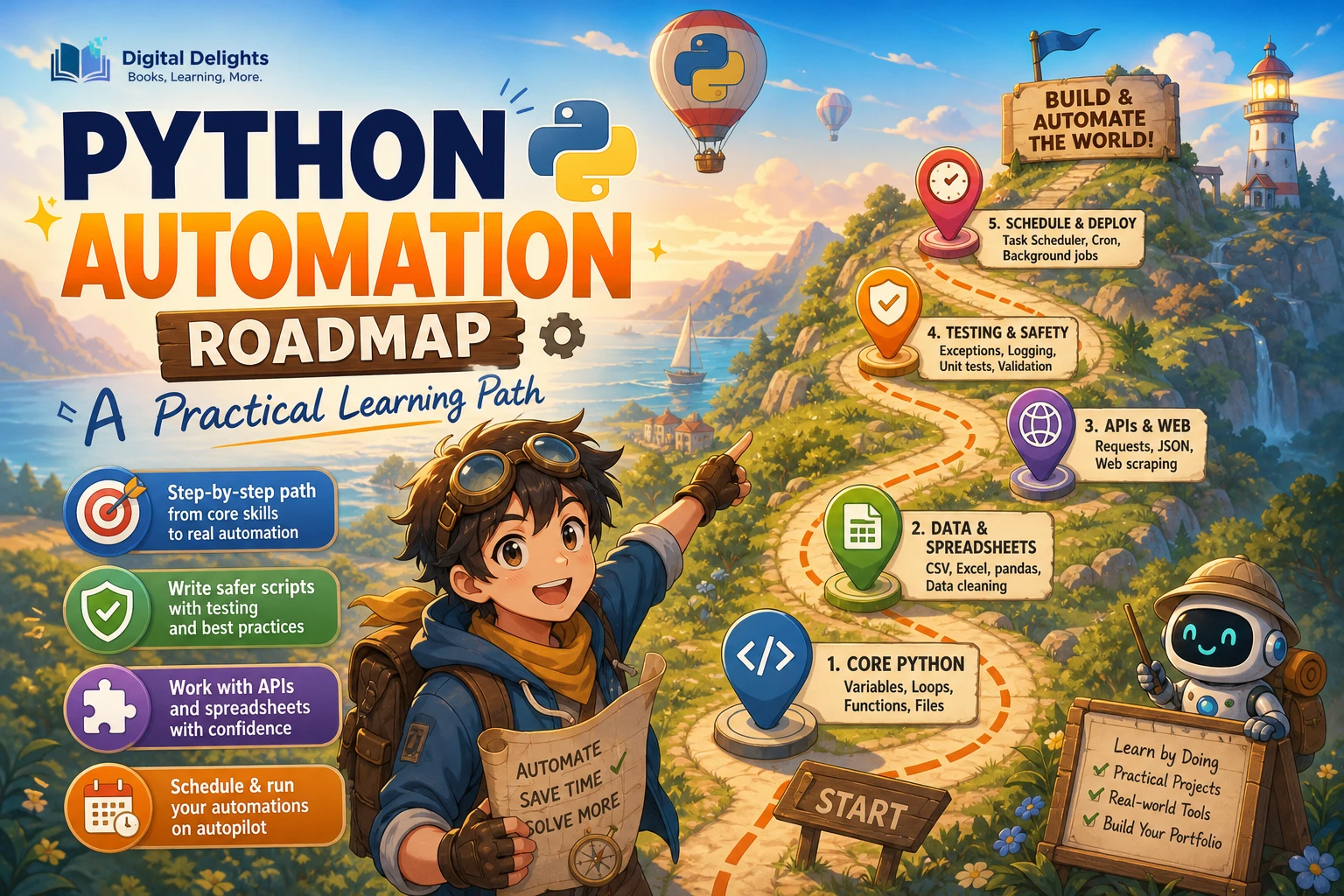
Python automation is not about building a giant bot on your first day. It is about learning enough Python to take a repetitive, low-risk task and turn it into a script you can understand, check, and safely run again. A practical Python automation roadmap moves through five stages: learn core programming skills, automate local files and data, connect to other tools, make scripts dependable, then prepare them for repeat use or scheduling.
You do not need previous programming experience to begin. Start with a task you already understand, such as sorting sample files or cleaning a small CSV. Build a modest solution, inspect what it does, and add complexity only when the first version works. This guide gives you a project-led sequence, explains what to learn at each stage, and highlights the habits that help prevent avoidable mistakes.
The Python automation roadmap at a glance
- Learn the essentials: variables, conditions, loops, functions, exceptions, and basic file handling.
- Automate local work: organize files, transform text and tabular data, and simplify a spreadsheet task.
- Connect tools: work with APIs, databases, or command-line programs when the task calls for them.
- Improve reliability: validate inputs, handle errors, log useful information, and test important behavior.
- Make it repeatable: document setup, manage dependencies, configure the script, and consider scheduling it.
This is an editorial learning path, not a proven universal sequence. The right pace and project depend on the tasks you want to automate. The official Python documentation provides a tutorial, library reference, and sections on setup and installing modules that can support different stages of learning.
What to learn before automating
You do not need to master every feature of Python before writing a useful script. Learn enough to read inputs, make decisions, repeat operations, organize code, and respond when something unexpected happens.
- Variables and data types: store values such as filenames, text, numbers, and lists of items.
- Conditionals: choose what to do based on a rule, such as whether a file has a particular extension.
- Loops: repeat an operation over a collection of files or rows.
- Functions: give a task a clear name and make useful code easier to reuse.
- Exceptions: handle problems such as a missing file or unreadable input without leaving the user confused.
- File handling: read and write files while understanding which paths and data a script can affect.
Basic comfort with folders and a command line is useful, but it can be learned alongside Python. You should be able to locate a project folder, run a script, and recognize where its input and output files are stored. If you are starting from scratch, Python Crash Course: A Comprehensive and Fast-Paced Introduction to Python Programming for Beginners and Experienced Developers Alike covers fundamentals such as variables, control flow, data structures, functions, and project work that includes automation.
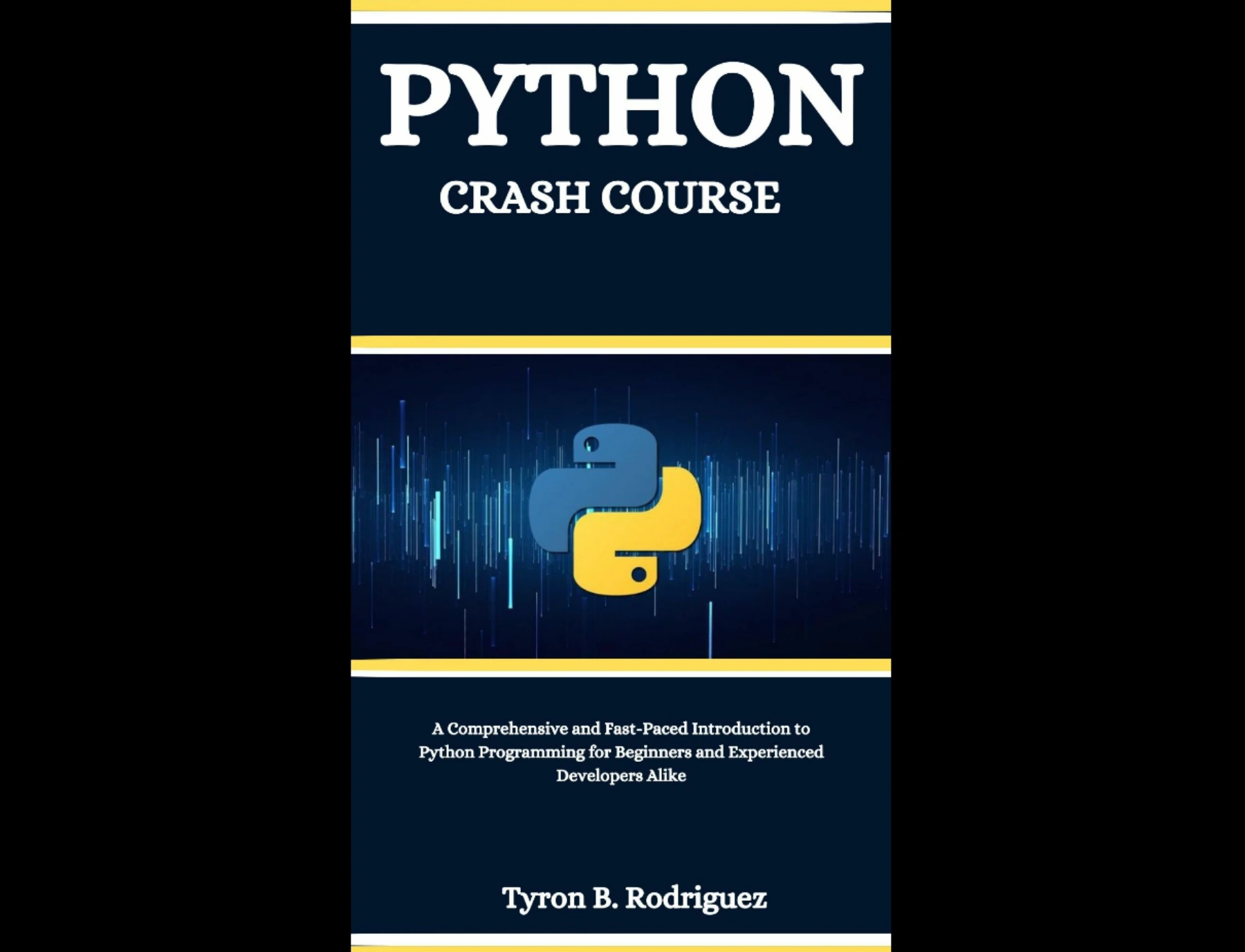
Learners seeking an introduction to variables, control flow, data structures, functions, and practical projects that include automation.
Start with small, local automation projects
Local tasks are a sensible starting point because their inputs and outputs are easy to see. Choose a task you can explain in a few sentences, and use copies or sample data while you are learning. Do not begin by pointing a new script at your only copy of important files.
Project 1: Sort a folder of files
Write a script that scans a test folder and groups files by extension or another simple rule. Begin by printing the proposed changes rather than moving anything. Once the preview looks right, add an explicit option to perform the moves. Check what happens when a file has no extension or a destination already contains a file with the same name.
Project 2: Clean a small CSV
Try a task such as trimming extra spaces, standardizing a column, or identifying rows with missing values. Save the result as a separate output file so you can compare it with the original. This project teaches you to treat input data as something to inspect rather than assume is always complete and consistent.
Project 3: Automate one spreadsheet routine
If you regularly repeat the same spreadsheet steps, describe them first: which files are involved, what changes are made, and what a correct result looks like. Then automate just one stable part of the process. A spreadsheet-focused learner may find Python for Excel Users: Know Excel? You Can Learn Python relevant because its catalog description presents Python concepts and automation through the perspective of Excel users.
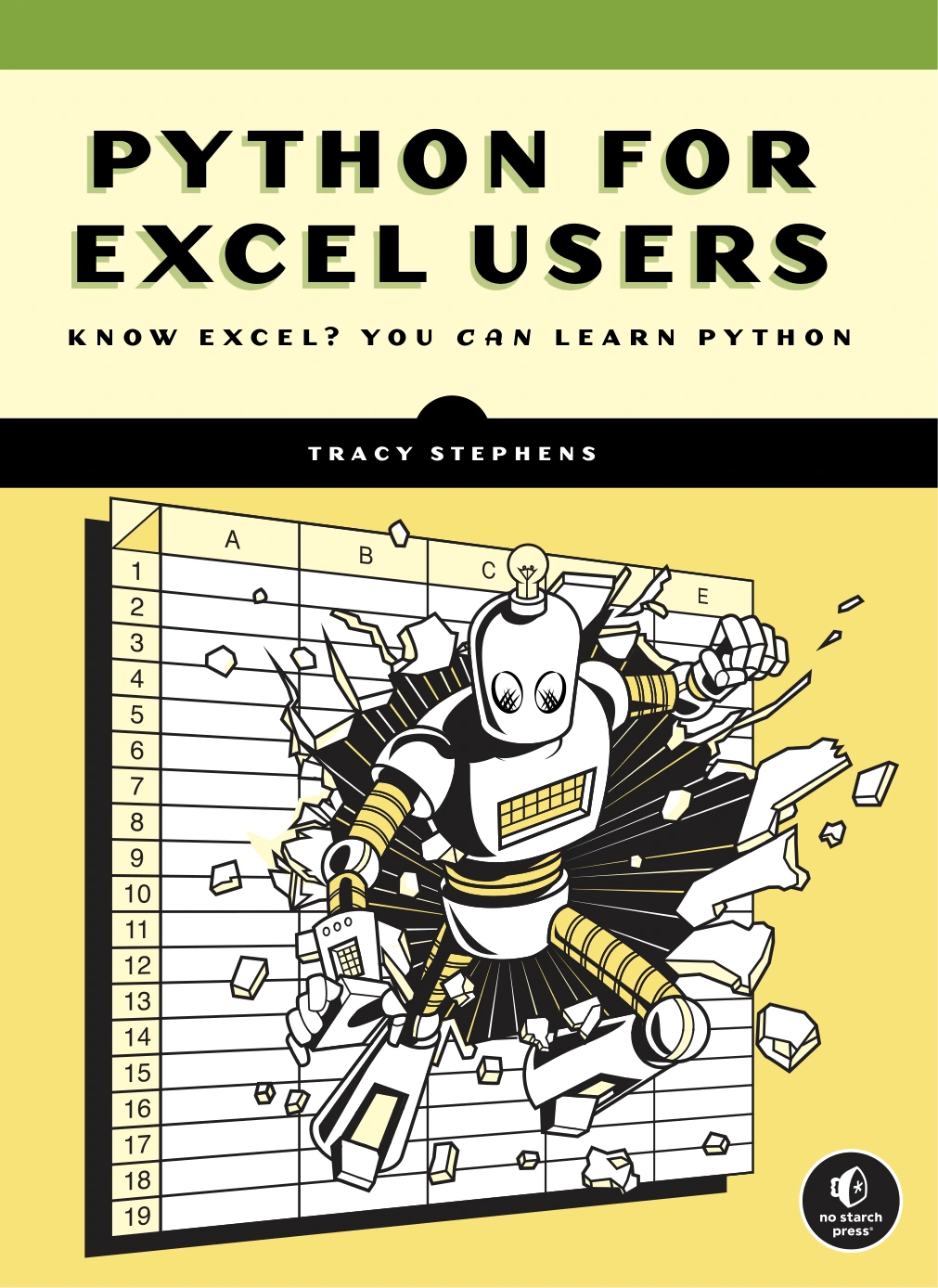
Python for Excel Users: Know Excel? You Can Learn Python
Excel users who want to approach Python fundamentals and repetitive spreadsheet work through familiar spreadsheet concepts.
Project 4: Produce a repeatable report
Combine information from a few sample files, calculate a simple summary, and write the result to a new file. Keep the first version small. Add a clear message when an expected input is missing, and make the output easy to distinguish from the source data.
Connect Python scripts to other tools
Once a local script works, decide whether it needs to communicate with another program or service. Add one kind of integration at a time and keep the task narrow enough to debug.
- Structured data: CSV and JSON are common formats for exchanging tabular or structured information. Start with the built-in options where they meet your needs.
- Web APIs: an API can provide a direct way to exchange data with a service. Learn what information the service expects and what it returns before automating requests.
- Databases: use a database when a task needs to store, retrieve, or update structured records rather than repeatedly editing loose files.
- Command-line programs: some workflows can be connected by running another program from Python. Understand its inputs, outputs, and failure behavior first.
For each tool, ask whether Python’s standard library is enough or whether a third-party package solves a real problem. A package may make a task easier, but it also adds a dependency that needs to be installed and maintained. There is no evidence here that one learning style is best for everyone; choose the simplest approach that clearly handles your use case.
API automation or browser automation?
When a service provides an API suited to your task, that may be a more direct integration than controlling a browser interface. Browser automation is useful for particular testing workflows and interactions with web pages, but it introduces page elements, timing, and browser behavior into the script. It is not automatically the right first step for every web-related task.
If your goal specifically involves automated browser testing in Python, Selenium WebDriver Recipes in Python focuses on practical WebDriver tasks, including locating elements, handling waits, and debugging test scripts. Treat it as a focused resource for Selenium work, not as a prerequisite for general Python automation.
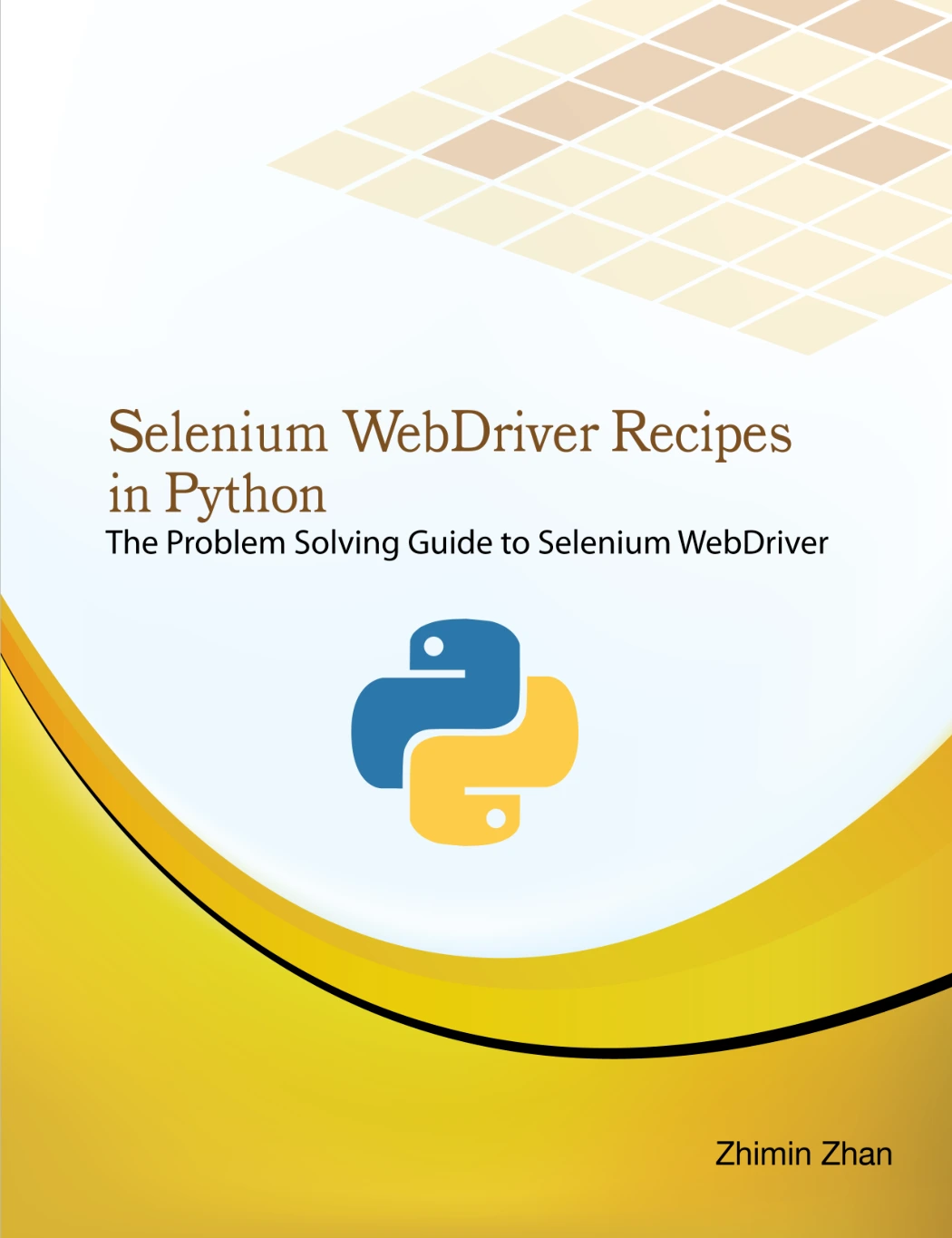
Selenium WebDriver Recipes in Python
By Zhimin Zhan
Readers working specifically with Python browser tests, WebDriver interactions, waits, and debugging.
Make your scripts safer and more dependable
A script that works once on ideal input is a useful experiment, but a repeatable tool also needs to cope with ordinary problems. Before a script changes or sends data, make its assumptions visible and test what happens when those assumptions are wrong.
- Validate inputs: check that required files, fields, and values exist before processing them.
- Handle expected errors: explain what went wrong and what the user can check, rather than failing without a useful message.
- Preview risky changes: show intended file operations or updates before applying them when practical.
- Keep recoverable originals: use copies or backups while developing a process that changes data.
- Log useful events: record enough context to understand what the script processed and where it stopped.
- Test important behavior: try ordinary inputs as well as missing, empty, or unexpected data.
- Protect credentials: avoid putting passwords, tokens, or other secrets directly into code that might be shared.
For example, a file organizer should not silently overwrite a file just because two source files have the same name. Decide on a collision policy, test it using sample files, and make the script report the choice. A small amount of deliberate checking is often more useful than adding features before the basic workflow is understood.
Prepare scripts for repeat use
When a script is useful beyond a one-off experiment, make it understandable to your future self or another person. State what it does, where its inputs come from, where outputs go, and how to run it. If it relies on extra packages, record what needs to be installed and use an isolated environment for the project rather than assuming every computer has the same setup.
Separate changeable settings from the main logic where that makes the script clearer. For example, a folder path or report name may be supplied when the script runs instead of being buried in several lines of code. Keep configuration simple, and do not store secrets in a file that will be shared or committed with the project.
Scheduling is a later step, not a substitute for testing. First run the script manually with known sample inputs. Then consider how it will behave when a file is missing, the computer is unavailable, or a previous run has already produced output. Scheduling methods differ across Windows, macOS, and Linux, so check the instructions for the operating system and environment you actually use rather than assuming one set of steps applies everywhere.
A project-led Python automation learning plan
Use this sequence as a flexible checklist. Move on when you can explain what your script does and verify its result, not when you have memorized every related Python feature.
| Stage | Practice project | Skill to add | Ready to move on when… |
|---|---|---|---|
| 1. Fundamentals | Read a few values and print a formatted summary | Variables, conditions, loops, functions | You can explain the main steps in your own words |
| 2. Local files | Preview a plan to organize sample files | Paths, file handling, command-line use | You can verify the plan before it changes files |
| 3. Data processing | Clean a small CSV or JSON file | Structured data, validation, separate outputs | You can compare the result with the original |
| 4. Integration | Connect to one API, database, or command-line tool | Requests, responses, dependencies, errors | You can identify success and failure cases |
| 5. Reliability | Improve one existing project | Logging, tests, configuration, recovery | You can rerun it without unexpected side effects |
| 6. Repeat use | Document and prepare a script for another run | Environment setup, dependency notes, scheduling | Someone can follow your instructions and check the output |
For more Python learning resources, browse the Python category. Choose a resource based on the next skill you need rather than collecting books without a project in mind.
Common beginner mistakes to avoid
- Starting with a large workflow: split it into small steps and confirm each step works before joining them.
- Automating a process you do not understand: first write down the manual steps, exceptions, and expected result.
- Running on important files too early: develop against disposable copies and inspect the output.
- Adding packages without a reason: understand what a dependency contributes and how the project will install it.
- Ignoring errors and unusual inputs: try missing files, blank values, and repeat runs before treating a script as ready.
- Assuming every computer behaves alike: paths, installed tools, and scheduling setup can vary by operating system.
- Automating browser clicks by default: first check whether a suitable API or simpler file-based workflow exists.
Frequently asked questions
Do I need programming experience to learn Python automation?
No. You can begin without previous programming experience. Learn core concepts such as variables, loops, functions, and file handling, and practise them on tasks you already understand.
What is a good first Python automation project?
Choose a small, low-risk task with visible inputs and outputs, such as organizing a test folder or cleaning a sample CSV. Work on copies, preview changes, and check the result before using real data.
Should I learn Python basics before using automation libraries?
Learn enough fundamentals to understand what a library-based script is doing. You do not need to master all of Python first, but functions, data structures, file handling, and basic error handling make it easier to adapt examples and diagnose problems.
Is browser automation necessary for automating websites?
Not necessarily. If a suitable API is available for the task, it may provide a more direct way to exchange information. Browser automation is a focused option for workflows that need to interact with a web page or test browser behavior.
When should I schedule a Python script?
Schedule it only after it works reliably when run manually and you have considered its inputs, errors, and repeat-run behavior. The setup depends on the operating system, so use platform-specific instructions.
Conclusion: build one useful script at a time
A useful Python automation roadmap is a sequence of increasingly dependable projects: learn the basics, start with local files and data, connect tools only when needed, and add checks before making the script repeatable. Keep the first task small and reversible. A script that solves one real problem safely is a stronger foundation than a complicated workflow you cannot yet explain.
Pick a repetitive task, write down what a correct result looks like, and build the smallest version that can produce it. Then test, improve, and document that version before moving on.
Sources and further reading
- Python 3.14 documentation — official documentation landing page with tutorial, library reference, and setup resources.