
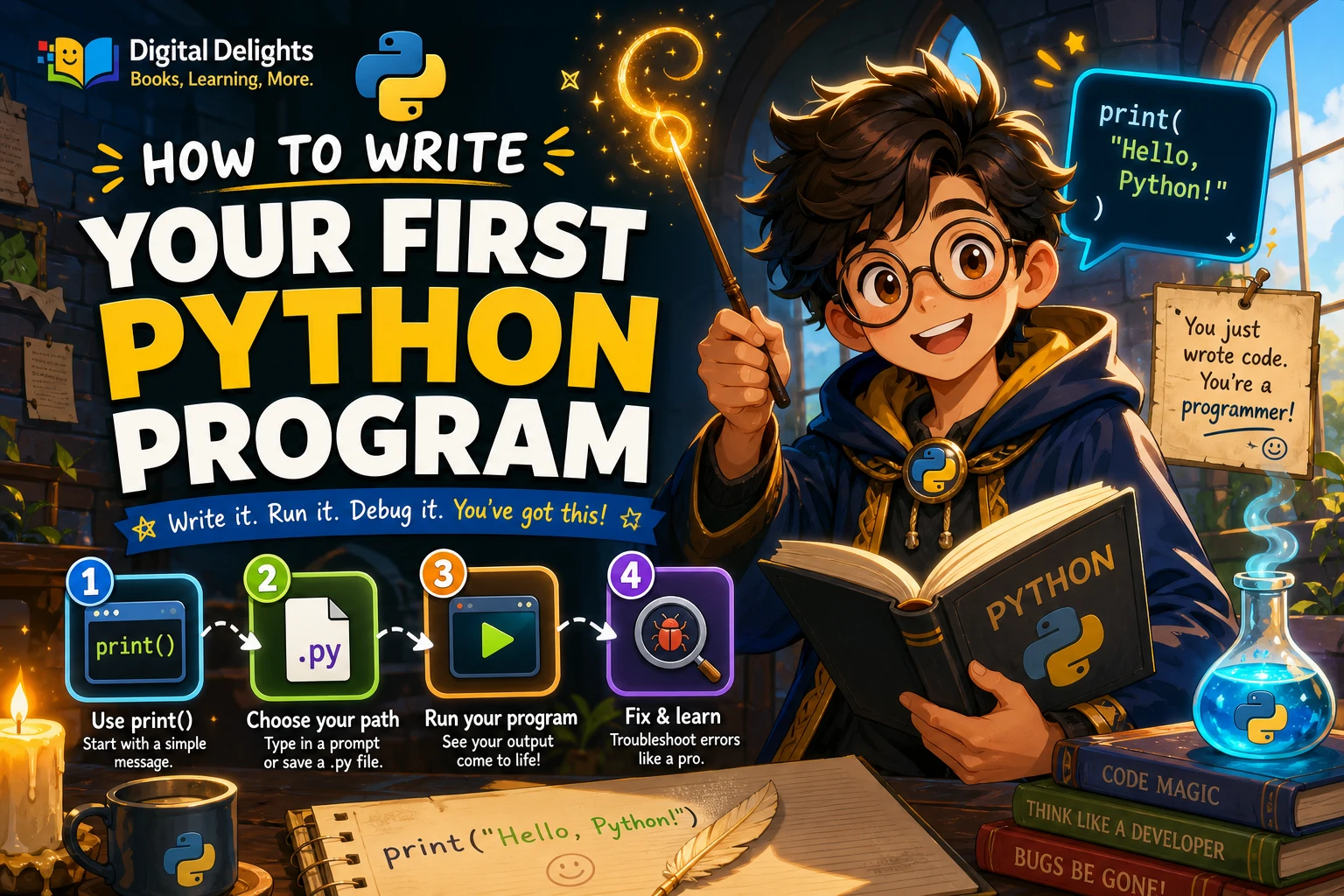
How to Write Your First Python Program
Your first Python program can be just one line of code. Type print("Hello, world!"), run it, and Python displays the greeting. The important first step is seeing the difference between the instruction you write and the result Python shows.
You can try code at Python’s interactive prompt or save it in a file and run that file. The prompt is useful for a quick experiment; a saved .py file is a practical way to keep and rerun a program. This guide walks through both options, explains the example, and offers straightforward checks if your first run does not work.
Write and run a first Python program
Start with this single line:
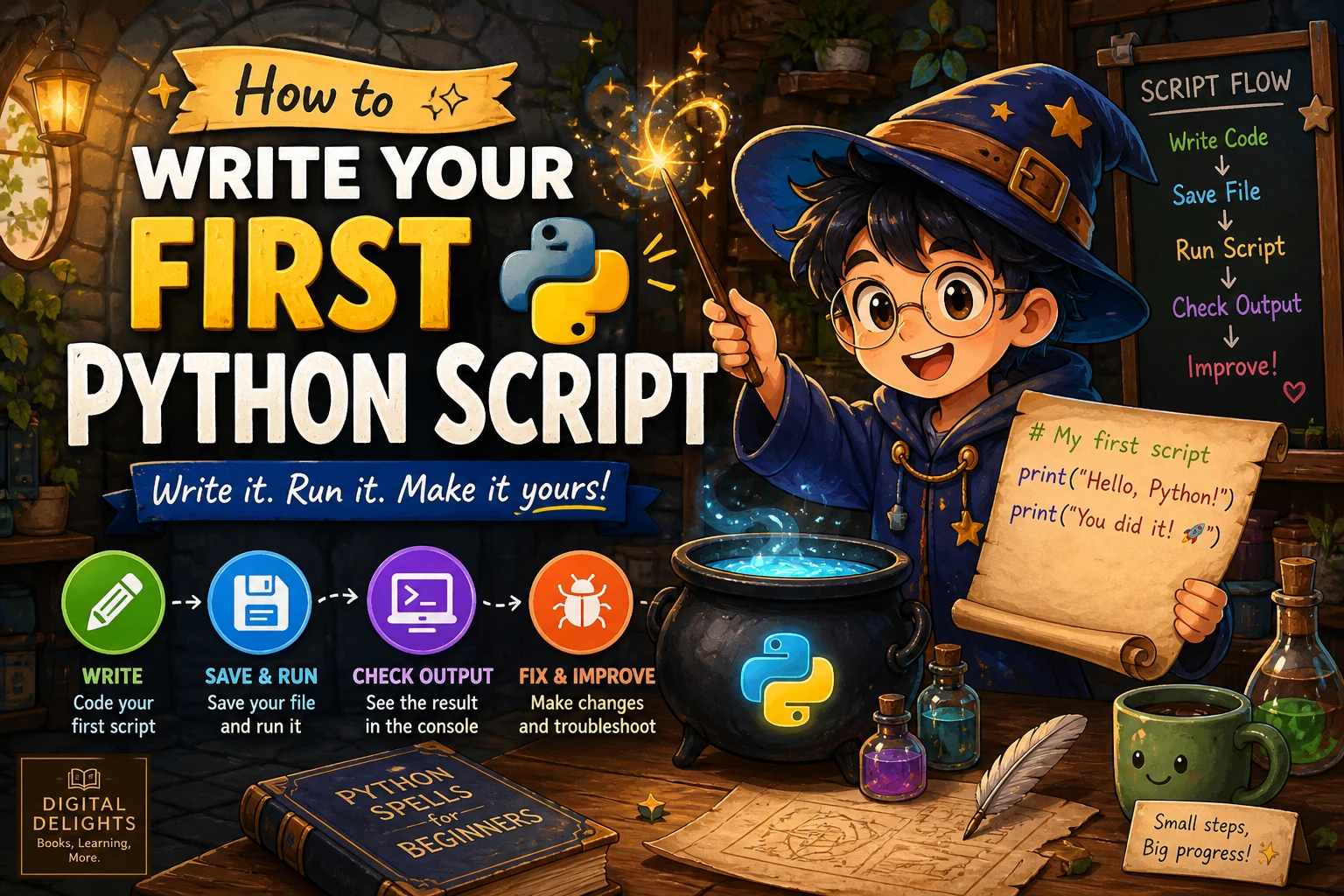
print("Hello, world!")When it runs, the output is:
Hello, world!The first block is the code: your instruction to Python. The second block is the output: the text Python displays. The quotes mark the text as a string in the code, but they are not printed as part of the greeting. Python’s official tutorial introduces the interactive interpreter and demonstrates displaying text with print() (Python tutorial: An Informal Introduction).
Choose where to write your code
There are two useful ways to try this example. You can enter it directly into Python’s interactive prompt, or save it in a script file. Both let you run Python code, but the prompt and a saved file are different environments.
Option 1: Try the interactive Python prompt
Open a Python interpreter using the method available on your computer. At the prompt, which commonly looks like >>>, type:
print("Hello, world!")Press Enter. The interpreter evaluates the line and displays the greeting. At the prompt, enter Python code only; do not type the >>> characters shown in examples, since those indicate where the prompt begins. The official documentation describes the interpreter as a place to enter commands and see their results (interactive interpreter introduction).
This is a quick way to test a small expression. For a program you want to keep, edit, and run again, use a file instead.
Option 2: Save a Python file
- Open a text editor or code editor that can save plain-text files.
- Enter
print("Hello, world!"). - Save the file with a name such as
hello.py. Make sure the filename ends in.py, not an extra extension such as.txt.
A Python script is a file containing instructions for the interpreter to execute. Saving it means you can return to the same code, make changes, and run it again. Python’s documentation explains how to use the interpreter to run a script file (Using the Python Interpreter).
Run the saved program
To run hello.py, use the terminal or command prompt for your operating system. The general process is:
- Save the file and note the folder where it is stored.
- Open a terminal or command prompt.
- Follow the official instructions for your system to select the Python interpreter and run the saved script.
The exact setup and command can vary by operating system and installation. In some environments, a command may look like python hello.py or python3 hello.py, but those names are not universal. If a command is not recognized, consult the current official instructions for your system rather than assuming Python is missing. The Python documentation provides operating-system-specific guidance, including separate information for Windows and macOS (Python on Windows).
After you run the script, look for Hello, world! in the terminal. The interpreter documentation covers running a script by providing its filename (Python interpreter and script files).
Understand the first Python program
Although the program is short, each part has a purpose:
printis the name of the function that displays information.- The parentheses contain the value passed to the function.
"Hello, world!"is text, written inside quotation marks.- The complete line asks Python to display that text.
For this example, the result is visible text in the output area. The program does not need to save anything or ask the user a question; it simply displays the message when it runs.
Troubleshoot common first-run problems
A first attempt that does not run is usually a useful clue. Check these common issues before changing several things at once:
- The Python command is not recognized: Python may not be installed, or your system may use a different command to start it. Check the official installation guidance for your operating system.
- You see a syntax error: Compare your line with the example. Check that the opening and closing parentheses and quotation marks are present.
- The script appears to do nothing: Confirm that you ran the saved file and look in the terminal or output panel for its result or an error message.
- The file is not found: Check that the terminal is working in the folder where you saved
hello.py, or follow your system’s instructions for running a script from another folder. - The filename has an unexpected extension: Check the actual saved filename. Some editors may add
.txtunless you choose a plain-text file or show file extensions.
Installation instructions can differ across Windows, macOS, and Linux. Python’s official documentation has platform-specific setup information; Linux distributions may also provide their own Python packages and versions (official Python setup documentation).
Try a small variation
Once the greeting works, change the message and run the program again:
print("I wrote my first Python program!")You can also ask Python to display a second line by adding another print() call:
print("Hello, world!")
print("This is my second line.")
Make one change at a time, save the file, and run it again. That simple cycle—change, run, observe—helps you connect what you edit with what the program does.
What to learn after your first Python program
After printing a message, build on the same basic idea with a few core concepts:
- Variables: give a value a name so you can use it again.
- Input: let a program receive information from a person using it.
- Conditionals: choose what a program does based on a condition.
- Loops: repeat instructions when a task calls for it.
- Functions: group instructions under a name so they can be called when needed.
Practise each idea with small changes to a script before combining them in a larger project. If you would like a practice-focused resource, Python Bookcamp: Exercises and Projects covers Python fundamentals through exercises, projects, and case studies.
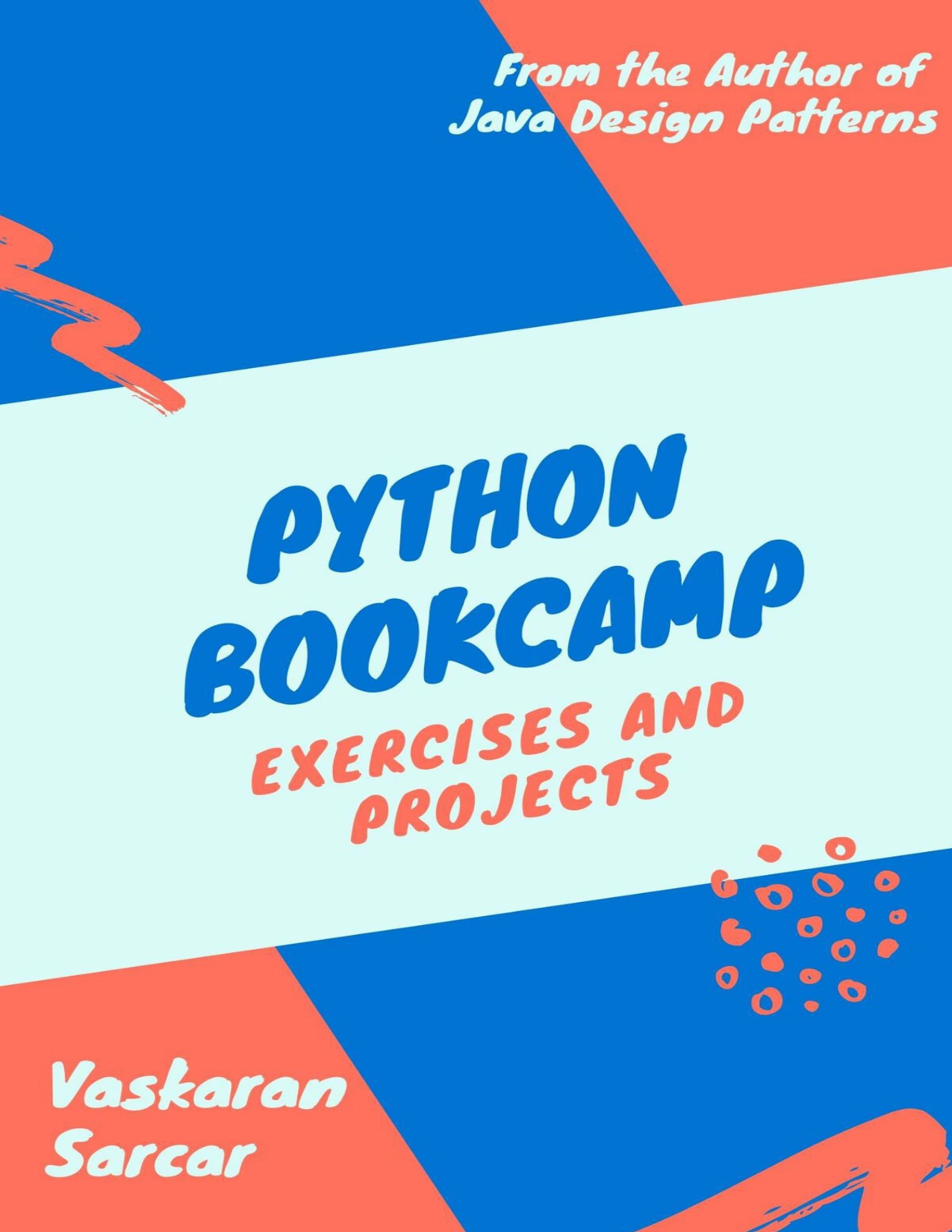
Python Bookcamp: Exercises and Projects
Beginners who want to practise Python fundamentals through exercises, projects, and case studies.
You can also browse the Python learning resources available from Digital Delights.
Frequently asked questions
Do I need programming experience to write my first Python program?
No prior programming experience is needed to try the one-line greeting in this guide. You need access to a Python interpreter and somewhere to enter code. Start with the example, then explore one new idea at a time.
What does print() do in Python?
print() displays the value you provide inside its parentheses. In print("Hello, world!"), the value is a text string, so the displayed output is Hello, world!.
Should I use the interactive prompt or a Python file?
Either can be a starting point. The interactive prompt lets you try a line and see its result immediately. A saved file is useful when you want to keep a program, edit it, and run the whole script again. The official Python documentation describes both ways to work with the interpreter.
Why does my computer say that Python is not recognized?
The command you entered may not match your installation, or Python may not be available through that terminal yet. Check the official setup instructions for your operating system and follow the steps for launching Python there.
What should I learn after printing text?
Try variables and input, then use conditionals to make a simple choice. Loops and functions are useful next steps as you begin making programs that do more than display a fixed message.