

Python Automation Ideas for Beginners: 5 Projects to Try
Python automation can start with a small annoyance: files scattered across a folder, a spreadsheet you review by hand, or a text file you repeatedly search. A short script can help with tasks like these—but a good first project should be easy to understand, low risk, and simple to test.
Start with copied sample files, not important originals. The ideas below progress from basic file tasks to small command-line tools, with notes on which Python features or extra packages they need. You will also find a cautious file-organizing example you can run in preview mode before allowing it to move anything.
How to choose your first Python automation project
Pick a task you already understand well enough to describe as a sequence of steps. For example: “Look at every PDF in this test folder and list its name.” That is a better first goal than “automate my entire computer,” because you can check whether the result is correct.
- Make it repetitive: Choose a task you do more than once, such as checking filenames or counting rows.
- Keep the first version small: Automate one action, not a whole workflow.
- Use copies or sample data: Avoid experimenting on your only copy of a document.
- Decide how you will verify it: Compare the script’s output with what you can check manually.
- Prefer a harmless result at first: Printing a list is safer than renaming, moving, or deleting files.
There is no objectively best first project for every learner. As practical starting points, file lists and simple summaries are easy to inspect, while file-moving scripts introduce extra risks that deserve careful testing.
Five beginner Python automation ideas
| Project idea | What it does | Starting tools | Risk to manage |
|---|---|---|---|
| Sort files in a test folder | Groups files by extension or another simple rule | pathlib, shutil |
Moving or overwriting the wrong file |
| Summarize a CSV file | Counts rows or reports basic information about a table | csv |
Unexpected headers or empty values |
| Find files by name or extension | Lists matching files in a chosen folder | pathlib |
Searching a broader folder than intended |
| Build a small command-line utility | Lets you supply a folder or option when starting a script | argparse |
Missing or incorrect input |
| Explore spreadsheets or web tasks | Works with richer documents or online services | May require packages, accounts, or network access | Credentials, changing data, and external-service rules |
1. Sort or rename files in a practice folder
A file organizer can list files by type, suggest new names, or move files into folders. Begin by printing the proposed changes. Once the preview is correct, you can decide whether to add a separate option that applies them.
Python’s pathlib offers path objects that work with filesystem paths, while shutil provides common file operations. See the official pathlib documentation for path handling. The following small example only previews matching text files; it does not move or change them:
from pathlib import Path

folder = Path("practice-files")

for path in folder.glob("*.txt"):
    print(f"Would organize: {path.name}")
Use a folder you created specifically for practice. When you later add file-moving behavior, check whether the destination already exists and decide how the script should handle a name conflict. Do not assume a file operation is reversible.
2. Summarize a simple CSV file
A comma-separated values (CSV) file is a practical way to practise reading structured text. A first script might report the column names and number of records, or count how often a value appears in one column. Use a small, non-sensitive sample first.
import csv
from pathlib import Path

file_path = Path("sample.csv")

with file_path.open(newline="", encoding="utf-8") as file:
    reader = csv.DictReader(file)
    rows = list(reader)

print("Columns:", reader.fieldnames)
print("Data rows:", len(rows))
This example assumes the file has a header row. Real files may have missing values, different encodings, or inconsistent columns, so inspect the input and check the output before relying on a summary.
3. Find files matching a name or extension
Searching for files is a useful low-impact project because the first version can simply print matches. Try listing all PDF files in a practice folder, or finding filenames that contain a word. pathlib supports patterns such as glob("*.pdf"); you can later add recursive searching if your task needs it.
from pathlib import Path

folder = Path("practice-files")

for path in folder.glob("*.pdf"):
    print(path.name)
Keep the search scope clear. A script that looks in one test folder is easier to verify than one that searches an entire drive.
4. Turn a script into a small command-line utility
Once a script works with one fixed example, you can make it accept an input folder or other options when it starts. Python’s standard-library argparse module is designed for building basic command-line interfaces. This is useful when you want to reuse the same script with different inputs without editing its code each time.
For example, a file finder could accept a folder and a filename pattern as arguments. Add one option at a time, and keep sensible checks for folders that do not exist or contain no matches.
5. Explore spreadsheet or web tasks as a next step
After you are comfortable with files and simple data, you could investigate repetitive spreadsheet work, document processing, web-page collection, or notifications. These projects can involve third-party packages, accounts, network access, or service-specific rules, so they are not all equivalent in difficulty. Start by confirming what the task is allowed to access and whether the service permits automation.
For scripts that need external packages, Python’s venv module can create an isolated environment for a project. The official venv documentation explains this approach. Keeping dependencies separate can make it easier to manage a learning project without mixing its packages into other Python work.
A safe workflow for Python automation
- Write down the intended action. Describe what the script should read and what it should change, if anything.
- Start with a preview. Print proposed filenames, moves, or updates before applying them.
- Test on copies. Use a disposable folder and sample data, especially for file changes.
- Check unusual cases. Consider empty folders, unexpected file types, duplicate names, and missing inputs.
- Make changes only after review. Add an explicit apply option rather than making destructive behavior the default.
- Keep a record while learning. Print a clear message for each item processed, skipped, or rejected.
If your automation launches another program, read the command and its arguments carefully before running it. Python’s documentation describes subprocess.run() as a high-level way to run a subprocess and recommends passing arguments as a sequence in its usual use. See the subprocess documentation; do not run commands you do not understand.
When should you make a script reusable?
A one-off script is fine when it solves one small task. Consider making it reusable when you find yourself changing the same hard-coded folder or setting each time. Command-line options can make inputs explicit, while helpful error messages can explain what the script needs.
Keep the reusable version modest. Add one feature, test it, and then continue. If the project begins to depend on extra packages, use a project-specific virtual environment and record what the script requires so you can recreate the setup later.
Common beginner pitfalls to avoid
- Assuming every computer uses the same path format: Prefer
pathlibpath objects over manually joining path fragments. Operating-system permissions and installed applications can still differ. - Changing original files too early: Preview and test on copies before adding moves, renames, or deletions.
- Adding packages without a need: Try the standard library for basic file paths, CSV reading, and command-line arguments first.
- Ignoring errors: A missing folder or unexpected file is a reason to report a clear message, not to silently assume the task succeeded.
- Automating a process you do not understand: Learn the manual steps and expected result before encoding them in a script.
Choosing a learning resource for your next step
If you want a structured path from Python basics into practical scripts, Python Automation Crash Course: 3 Books in 1 – The Ultimate Guide to Mastering Python Automation from Beginner to Advanced. Learn it Well & Fast covers beginner foundations and projects including file management, task scheduling, email, web scraping, and REST APIs, according to its catalog description. Its wider coverage may suit learners who want to explore several automation areas; you can also browse the Python collection for other programming resources.
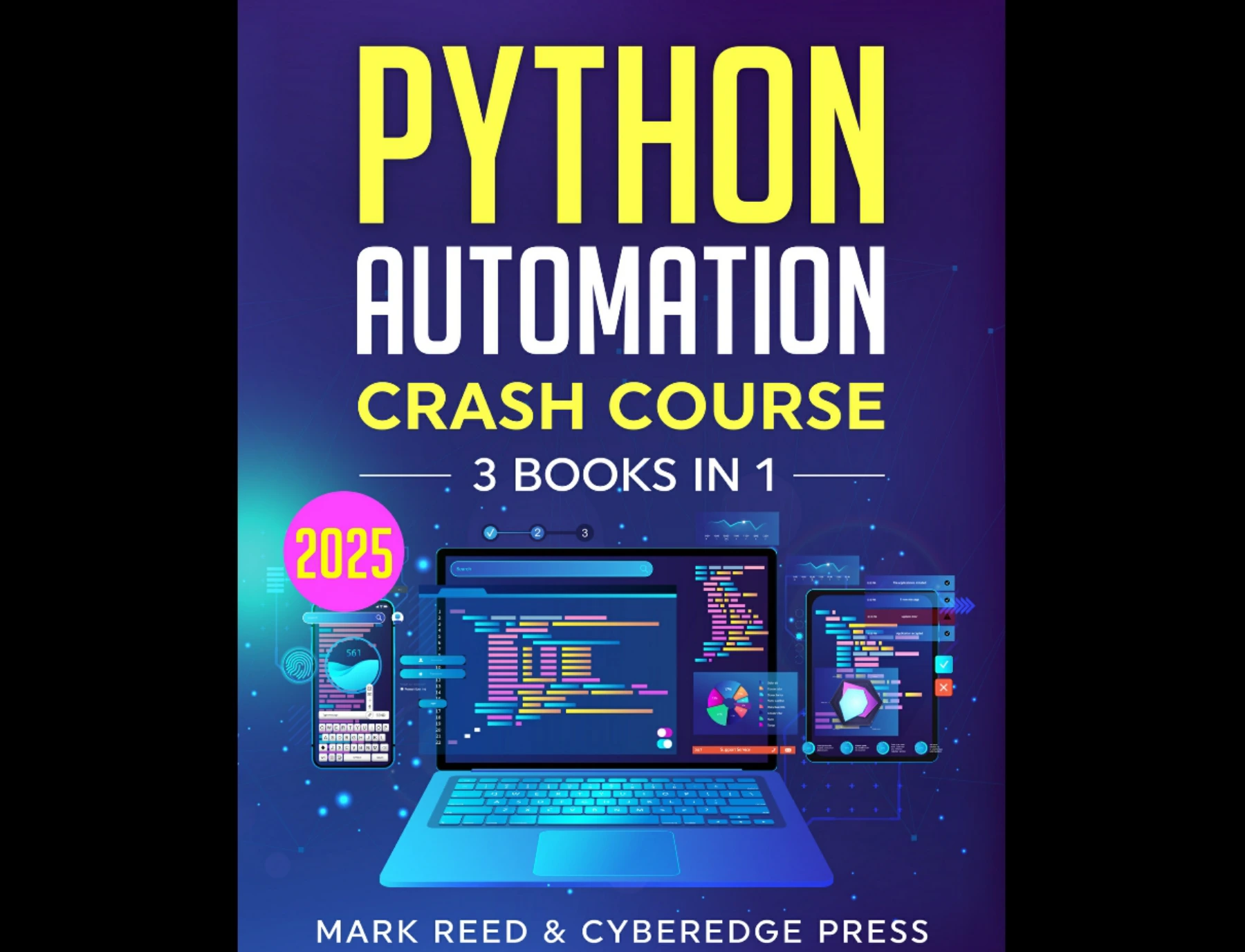
By Mark Reed
Learners seeking one resource that spans beginner fundamentals, file management, scheduling, email, web scraping, and REST APIs.
The simplest next step is still to finish one small script, test it carefully, and understand why it works. A working file finder or CSV summary is a more useful foundation than a large automation project you cannot yet troubleshoot.
Frequently asked questions
What should I automate first with Python?
Choose a repetitive, low-risk task with an easy-to-check result. Listing files in a test folder or counting records in a sample CSV are sensible starting points. Treat that as practical guidance, not a universal ranking of project difficulty.
Do Python automation projects need extra packages?
Not necessarily. Basic file paths, CSV reading, and simple command-line options can be handled with Python’s standard library. More involved spreadsheet, web, or service integrations may need external packages, accounts, or network access.
Can Python automate tasks on Windows, macOS, and Linux?
Python scripts can be used across these operating systems, but paths, permissions, installed programs, and available services may differ. Use platform-aware path handling, test on the system where the script will run, and avoid assuming that every environment behaves identically.
How do I avoid damaging files with an automation script?
Work on copies in a dedicated test folder, print proposed changes first, and make any apply action explicit. Check destination-name conflicts and keep backups of important files.