

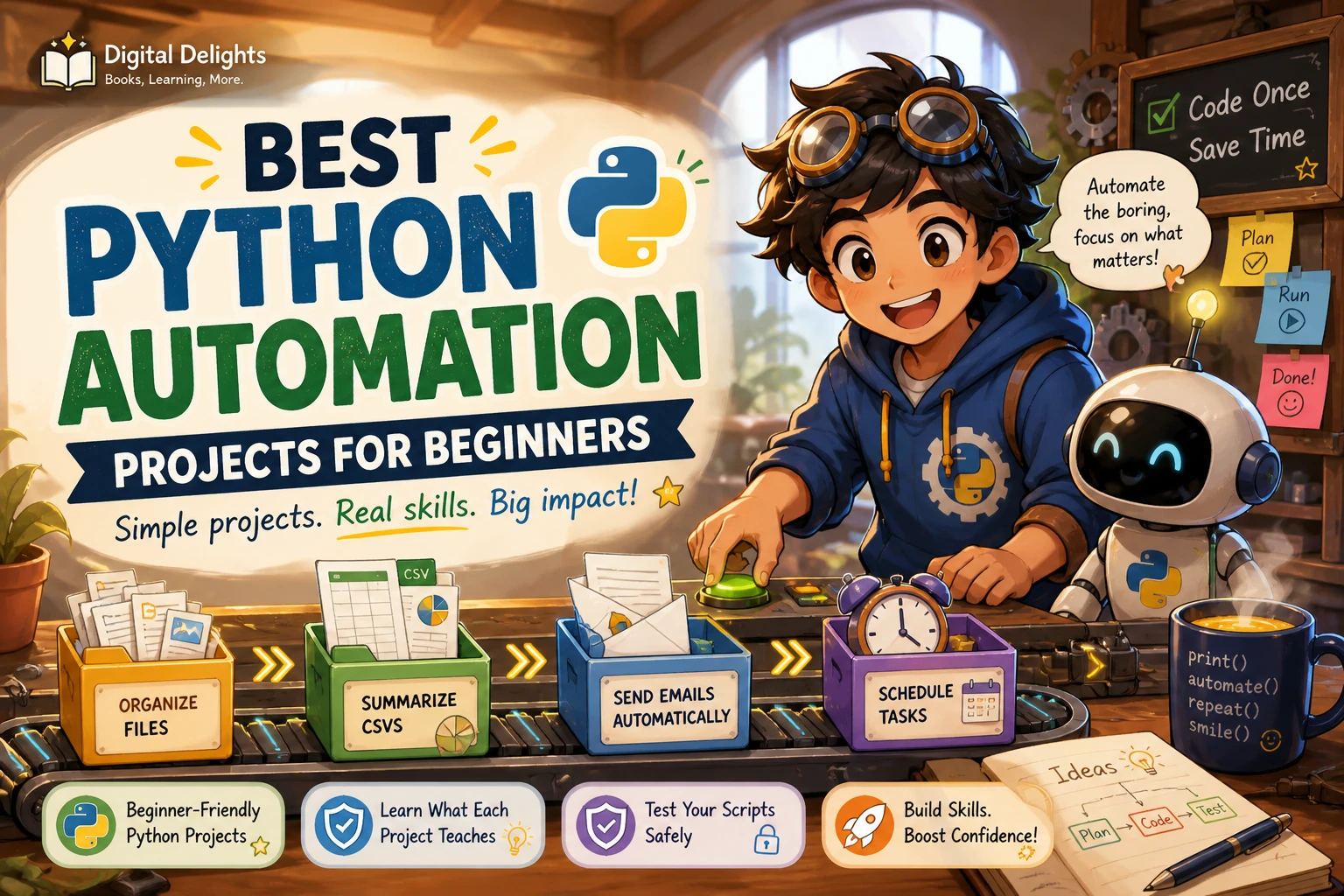
Best Python Automation Projects for Beginners
The best first Python automation project is a small task you already understand: sorting files, checking a spreadsheet, or finding a phrase in text files. Start with work that happens on your computer before moving on to websites or email, where accounts, credentials, and changing services can add complications.
The ideas below are practical editorial suggestions, not a measured ranking. Which feels easiest depends on what you already know and the files or tools you have available. For every project, begin with sample data or copies, check what the program intends to do, and only then let it make changes.
How to choose your first Python automation project
Look for a task that is repetitive, easy to describe, and small enough to finish in a few steps. “Organize these practice files by extension” is a more manageable first goal than “automate my whole computer.” A clear goal makes it easier to tell whether the script worked.
- Choose a real but low-risk task. A folder of duplicate practice documents is safer to experiment with than your only copy of important files.
- Keep the first version narrow. Handle one folder or one CSV file before adding extra options.
- Use built-in tools where practical. Python’s standard library includes modules for common tasks such as working with files and CSV data, so a first script may not need extra packages. See the Python standard library documentation.
- Make the result visible. Print a summary, save a report, or show a preview so you can inspect what happened.
A useful rule is to build a script that reports intended changes before it performs them. This preview step gives you a chance to catch a wrong folder, unexpected filename, or mistaken assumption.
Python automation projects for beginners
These projects move from local, low-setup tasks toward scripts with more user input or outside services. You can start with any one that solves a problem you actually have.
1. Make a file organizer or batch renamer
Write a script that lists files in a test folder and groups them by file extension, or renames a small set of photos using a consistent pattern. You will practise working with paths, loops, conditions, and file operations.
Start safely: have the first version print the proposed moves or new names without changing anything. Test it on copies in a dedicated folder. Once the preview is correct, add the change operation and check the results.
Possible next step: add a rule that groups files by a chosen category or adds a numbered sequence to filenames. Keep the rule explicit so that a filename is not changed in an unexpected way.
2. Build a CSV cleanup and summary tool
A CSV report is a good way to practise reading structured data. Create a script that counts rows, flags blank fields in a column, or totals values in a simple dataset. Python’s standard library includes a csv module for reading and writing CSV files; check the standard library reference for module documentation.
For a first version, report possible issues rather than silently changing the data. For example, list rows with missing values and produce a separate summary. That makes the output easier to verify and preserves the original file.
3. Create a text-file search helper
Make a small tool that searches a chosen group of text files for a word or phrase, then reports which files contain a match. This introduces file reading, string searches, and useful output. You can extend it to count matches or show the matching line.
Keep the scope clear: decide which file types to include and whether matching should distinguish uppercase from lowercase. Try the search with a phrase you know is present and one you know is absent.
4. Add command-line options to an existing script
Once a script works with a fixed sample file or folder, make it accept a path from the command line. That way, you can reuse it without editing the code every time. Python’s argparse module is designed for parsing command-line options and arguments; its official documentation explains the interface.
Begin with one required input, such as the file to inspect. Later, add an optional setting such as a search term or preview mode. If the supplied path does not exist, show a clear message instead of letting the script fail with a confusing traceback.
5. Try a web or email workflow after the basics
A script that checks a web page or sends an email can be engaging, but it is often a less predictable first project. It may require an account, credentials, an additional package, or a service that changes its interface. Start only after you are comfortable with basic scripts and know how to handle sensitive information safely.
Use a low-risk test account or a small test case where appropriate. Do not put passwords or private tokens directly into code that you share. If a website changes or blocks automated access, pause and review its rules rather than trying to bypass them.
A safe workflow for building and testing an automation script
- Describe the task in one sentence. For example: “List every CSV row with a blank email field.”
- Write down the expected output. Decide what the script should display or create, and what it must not change.
- Prepare sample data. Use copies in a test folder, not the only copy of real files.
- Build one small feature at a time. First read the input; then add the check; then create a report or preview.
- Check ordinary and unusual cases. Try an empty folder, an empty file, an unexpected filename, or a missing input path where relevant.
- Review before making changes. For renaming or moving files, inspect a preview and keep a backup until you trust the result.
- Explain how to run it. Record the required input, where the output goes, and any limitations you have noticed.
This process is useful because it separates the question “Does my script understand the task?” from “Should it change the original data?”
What to learn before and after your first project
You do not need to master all of Python before attempting a small automation task. It helps to understand variables, strings, lists, loops, conditions, functions, and how to read or write a file. As projects grow, learn how to handle errors so a missing file or unexpected value produces a useful message.
A steady progression is local files first, then CSV reports, then command-line inputs, and finally web or email workflows. The official Python tutorial introduces the language’s core concepts; treat it as a foundation rather than a guarantee that every project will be immediately straightforward.
If a guided resource would help, the catalog’s Python Automation Crash Course: 3 Books in 1 covers beginner Python automation topics including file tasks, scheduling, web scraping, email, and APIs. Those listed topics can help you find material related to your next project, but they do not establish that one project is objectively easiest or that the resource suits every learner.
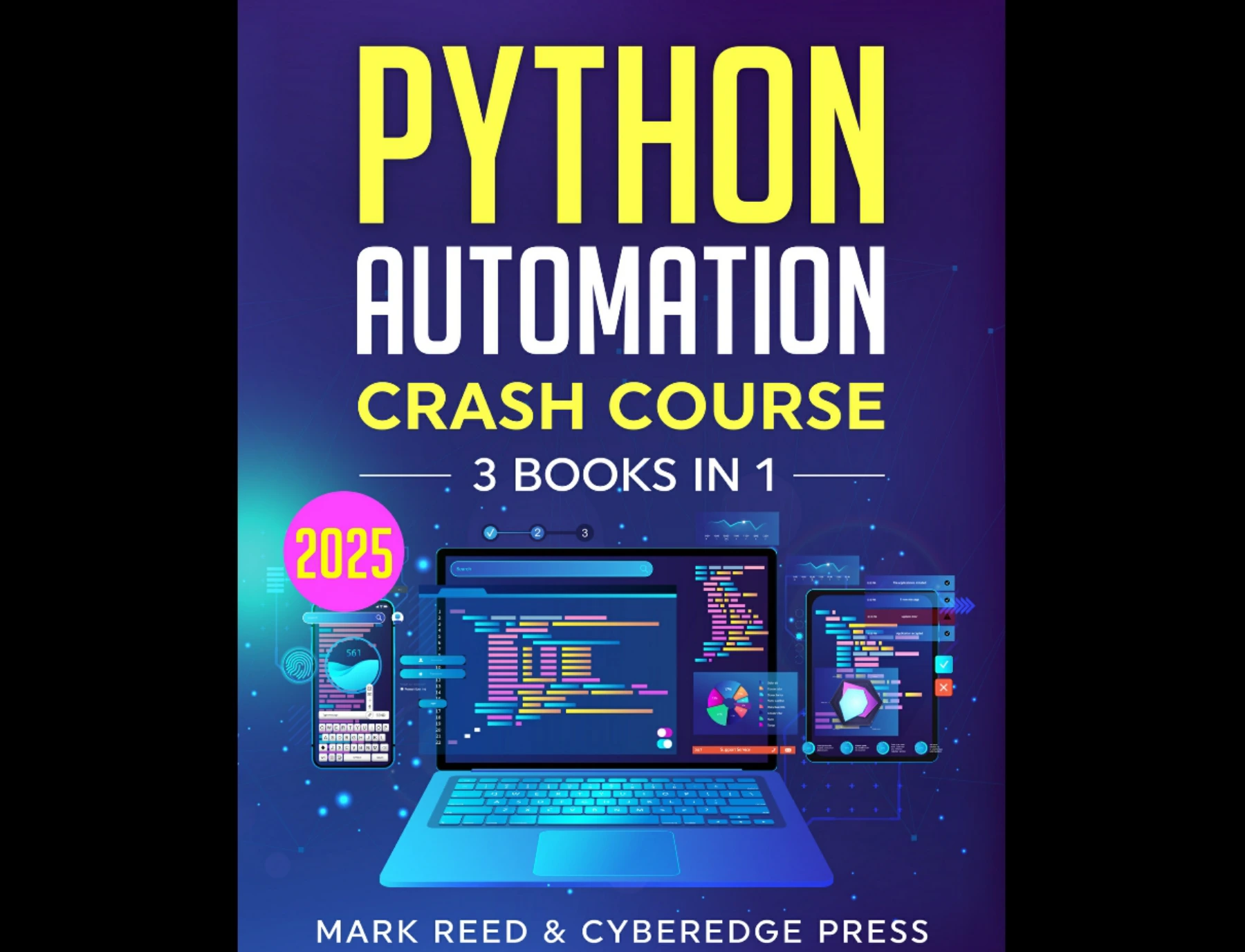
By Mark Reed
Readers looking for catalog-described coverage of file tasks, scheduling, web scraping, email automation, and APIs.
For additional exercises alongside reading, Automate the Boring Stuff with Python Workbook is described in the catalog as a practice-focused companion with questions, exercises, and mini-projects involving areas such as files, web scraping, spreadsheets, and databases.
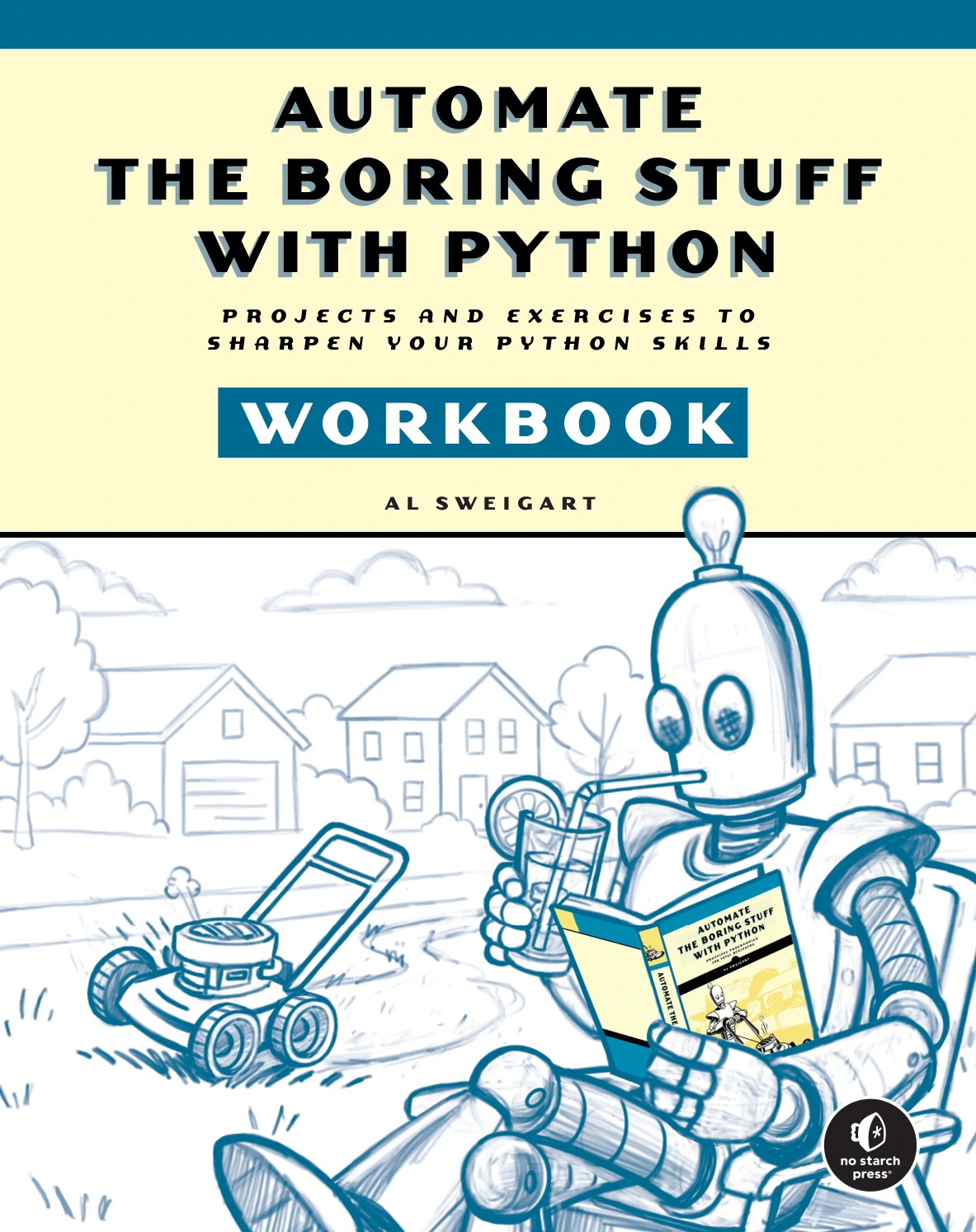
Automate the Boring Stuff with Python Workbook
By Al Sweigart
Learners who want exercises and mini-projects involving files, web scraping, spreadsheets, or databases.
Common beginner mistakes to avoid
- Automating too much at once: prove one useful action works before adding several features.
- Testing on original files: use copies first, especially when moving, renaming, or rewriting data.
- Skipping a preview: show intended changes before applying them where possible.
- Adding dependencies too early: start with built-in Python features if they meet the task’s needs.
- Assuming online services stay the same: websites and APIs may change, so keep web-based scripts small and check their requirements.
- Ignoring error cases: consider what should happen when an input is missing, blank, or in an unexpected format.
Frequently asked questions
Do I need prior coding experience to try Python automation?
You can begin with a small project while learning the basics, but you will need to understand enough Python to follow variables, conditions, loops, and file operations. Start with a narrow task and look up unfamiliar concepts as they arise. The Python tutorial introduces foundational language ideas, while practical projects provide a place to apply them.
Which Python automation project is easiest to start with?
There is no universally easiest project. A file-listing script or a simple CSV summary can be a reasonable starting point if you have a test folder or sample data. Choose the one whose input and desired result you can explain most clearly, and begin with a version that only reports what it finds.
Can I build Python automation projects offline?
Many local projects, such as searching text files or organizing a test folder, can be developed without connecting to a web service. Online projects and some package installations require internet access. Whether a particular script works offline depends on what it needs to access.
How can I avoid damaging files while testing?
Work on copies in a separate test folder, make the first version report intended changes, and inspect the output before allowing the script to move or rename anything. Keep a backup of important data and test unusual cases before using the script on a larger set of files.
Choose one small task and make it reversible
Pick one repetitive local task, define what success looks like, and build the smallest script that can help. Start with a preview or report, test it on sample data, and add more automation only after the first version behaves as expected. That approach turns Python practice into a useful tool without asking a beginner project to do too much too soon.