
How to Build Your First Python Script
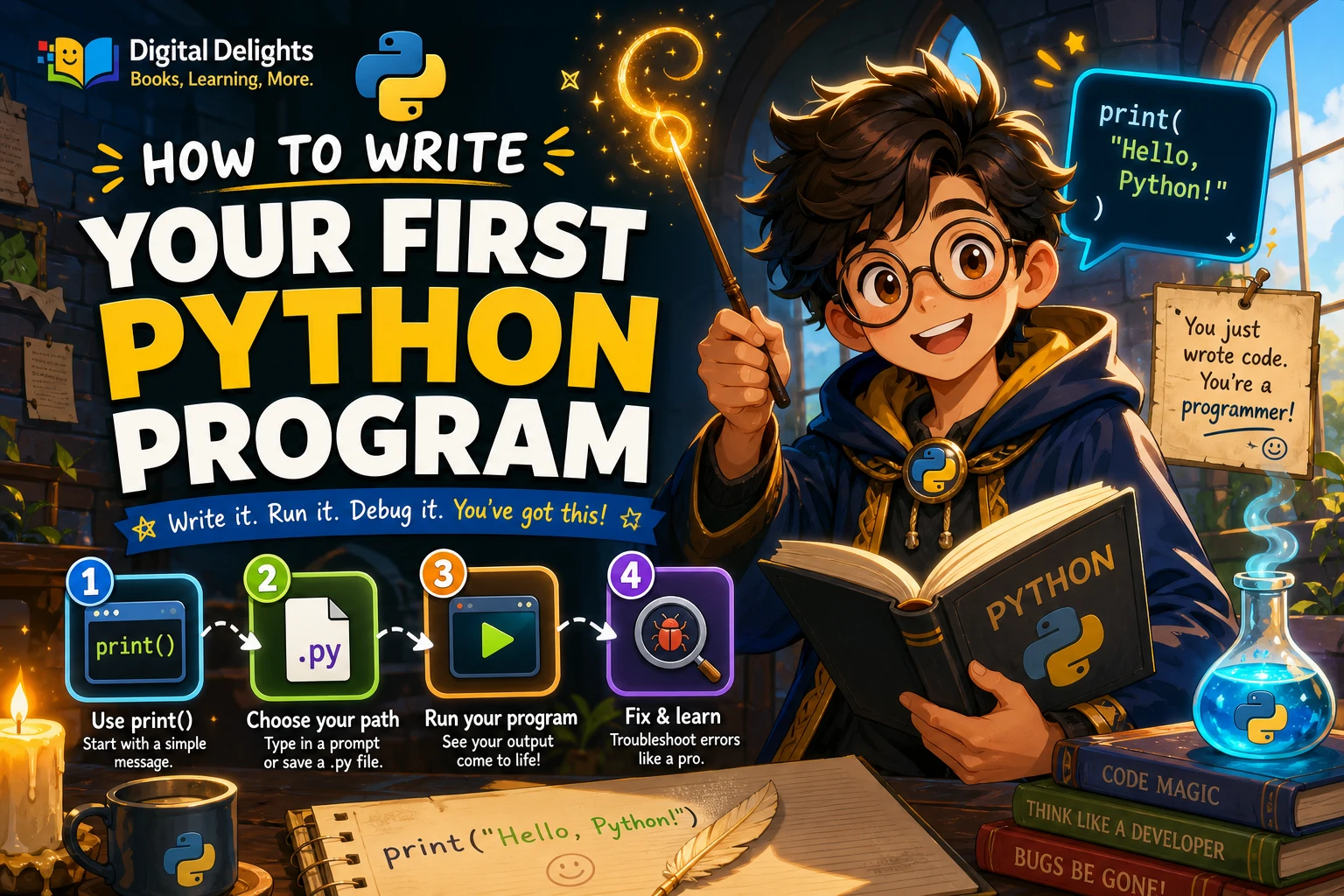
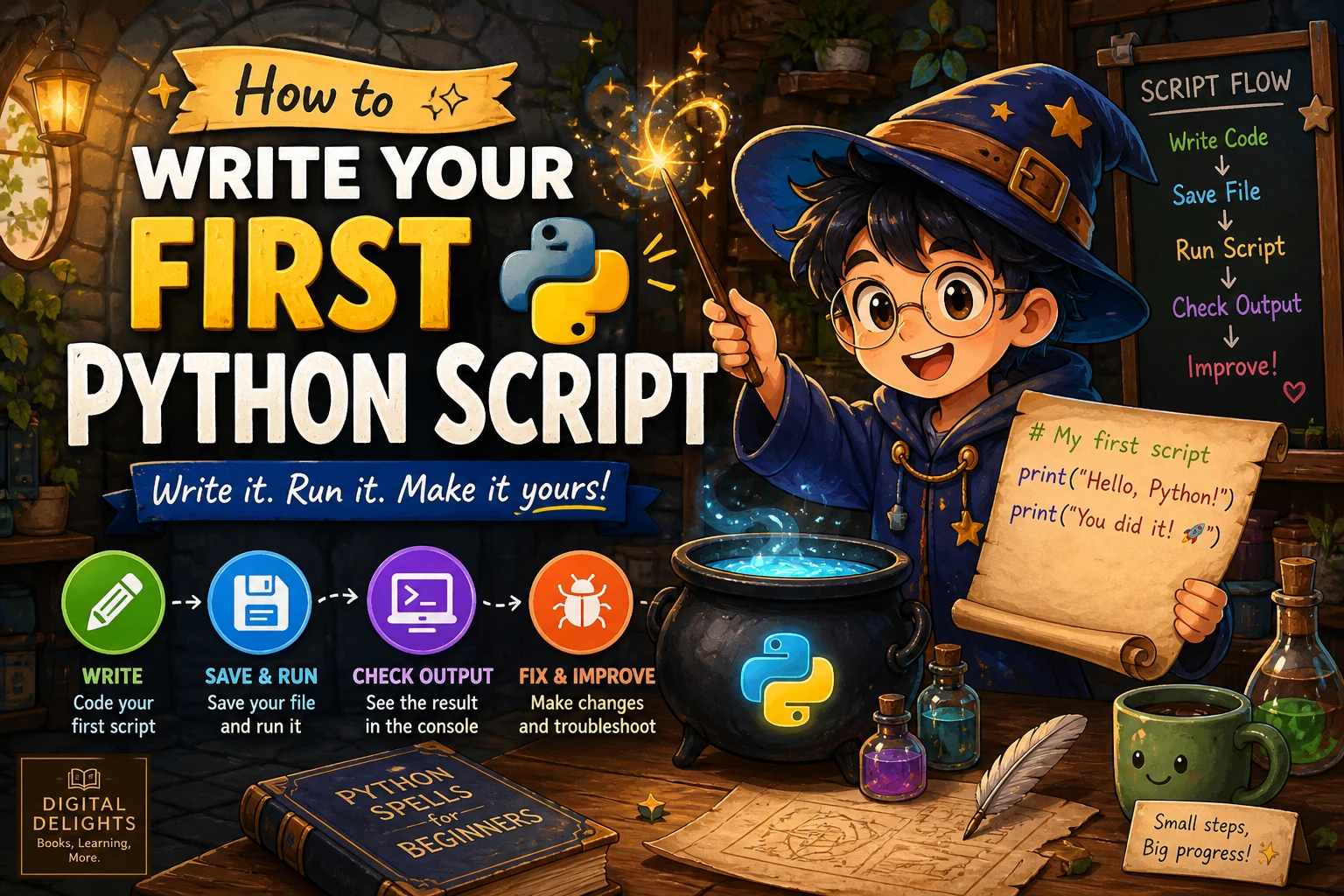
Your first Python script does not need to solve a big problem. It only needs to be saved in a file, run by Python, and changed so you can see what happens. This guide walks through that process with a small program you can type yourself. You will learn what a script is, how to run a .py file, and how to deal with a few common first-run errors.
You need Python 3 and a plain-text code editor. The example uses only features included with Python, so there are no extra packages to install.
What Is a Python Script?
A Python script is a text file containing Python instructions. Save it with a .py extension, then ask the Python interpreter—the program that reads and runs Python code—to execute it.
This differs from the interactive Python prompt, where you enter a line and see its result immediately. A script keeps several instructions together in a file, so you can run the same sequence again and edit it over time. For a first project, a saved file is a useful way to practise that write, run, and revise cycle.
What You Need to Get Started
- Python 3: Install a stable Python 3 release from Python.org’s downloads page if Python is not already available. Download and setup steps can differ by operating system.
- A plain-text code editor: Use an editor that saves plain text. A basic editor is enough; you do not need a particular brand or a specialized development environment for this example.
- A terminal or command prompt: You will use this to tell Python which file to run. Depending on your setup, this may be called Terminal, Command Prompt, or PowerShell.
You do not need to install a third-party package for the script below. Packages become relevant later if a project needs code that is not included with Python.
Write Your First Python Script
Open your editor and enter these lines:
name = input("What is your name? ")
print(f"Hello, {name}!")
Save the file as hello.py. Make sure the editor saves it as plain text and that the filename ends in .py, not .py.txt.
What Each Line Does
input("What is your name? ")displays a question and waits for the person running the script to type an answer.name =stores the answer in a variable calledname. A variable is a named place to keep a value while the program runs.print(...)displays text in the terminal.- The
fbefore the message lets Python insert the value ofnamewhere the braces appear.
There is no need to understand every Python feature before running this. For now, notice that the program gets a value, stores it, and uses it in a response.
Save and Run the Python File
Open a terminal or command prompt and change to the folder where you saved hello.py. Then pass the file path to the Python interpreter. A common command is:
python hello.pyThe exact command can depend on the operating system and how Python was installed. If python is not recognized, Windows installations may support py hello.py; on some macOS or Linux setups, try python3 hello.py. Python’s documentation explains how interpreter commands and script paths work, and its Windows guide describes Windows-specific commands. See Command line and environment and Using Python on Windows.
When the script starts, enter your name at the prompt and press Enter. The terminal should display a greeting. If you are unsure where to start with the terminal, you can also use an editor or development environment that has a run command, but the exact controls vary between tools.
Make a Change and Run It Again
After the first successful run, change the greeting text, save the file, and run it again. For example:
name = input("What is your name? ")
print(f"Welcome to Python, {name}!")
This small edit matters: it confirms that you are running the file you changed, and it gives you a repeatable way to learn. Try changing the question, then see what the script prints. Add one change at a time so it is easier to tell what caused a new result or error.
Fix Common First-Run Problems
| What you see | What to check |
|---|---|
| The file cannot be found | Check that the terminal is in the folder containing the file, and confirm the spelling of hello.py. |
| The command is not recognized | Python may not be installed, or its command may differ on your system. Check the installation and try the platform-appropriate command, such as py or python3. |
| Nothing happens when you run it | Check that you saved the latest version and that you are running the intended file. The first line also waits for you to type an answer. |
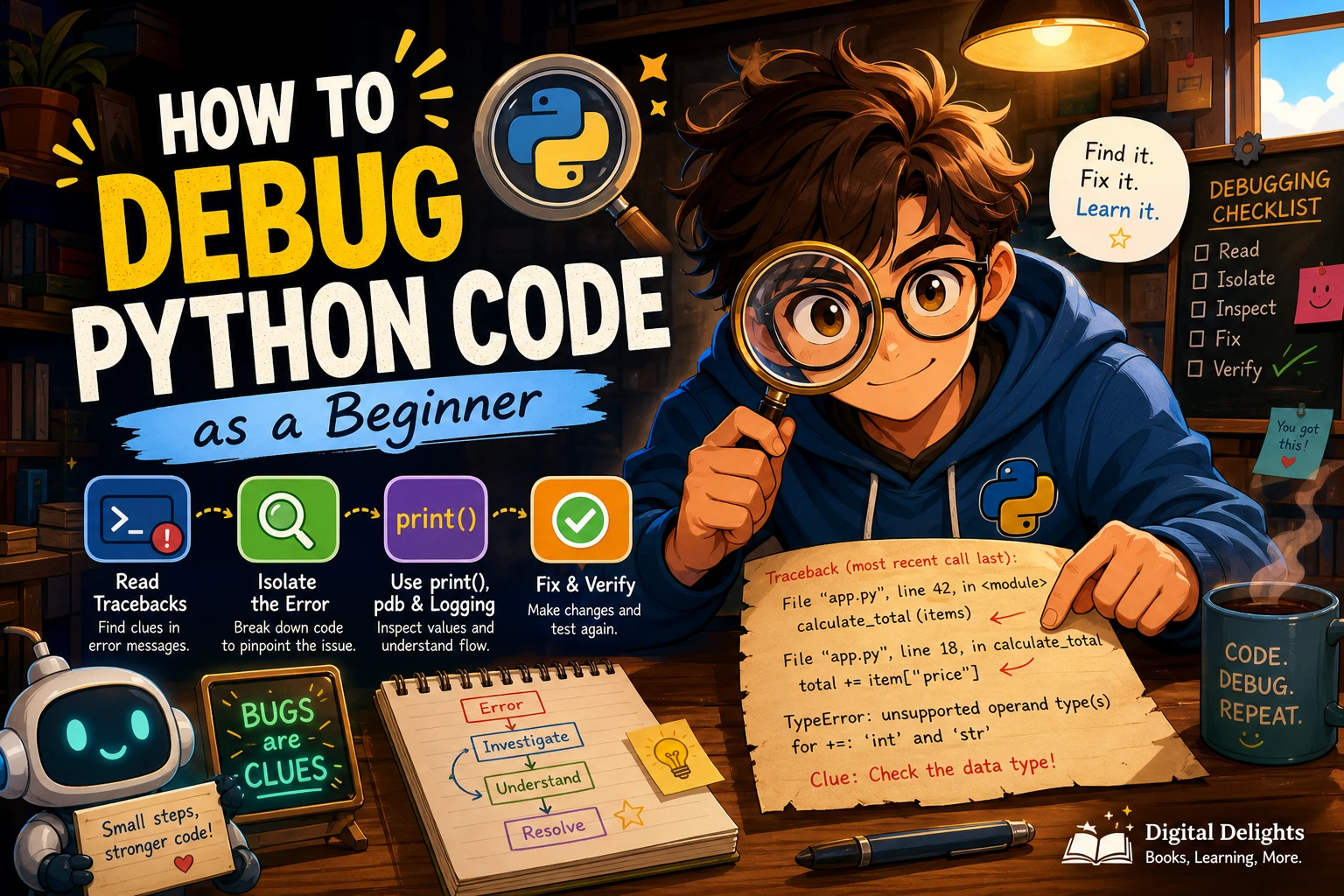
| A syntax error appears | Read the reported line and check for a missing quote, parenthesis, or colon. Python often points near the problem, although the underlying mistake may be just before that spot. |
| An indentation error appears | Make sure lines that belong inside a code block are indented consistently. This example does not require indentation, so its two lines should both start at the left edge. |
The file seems to be named hello.py.txt |
Your editor may have added a text-file extension. Rename the file so its actual extension is .py. |
Errors are information about what Python could not interpret or do. Read the message, check the named file and line, make one correction, and run the script again.
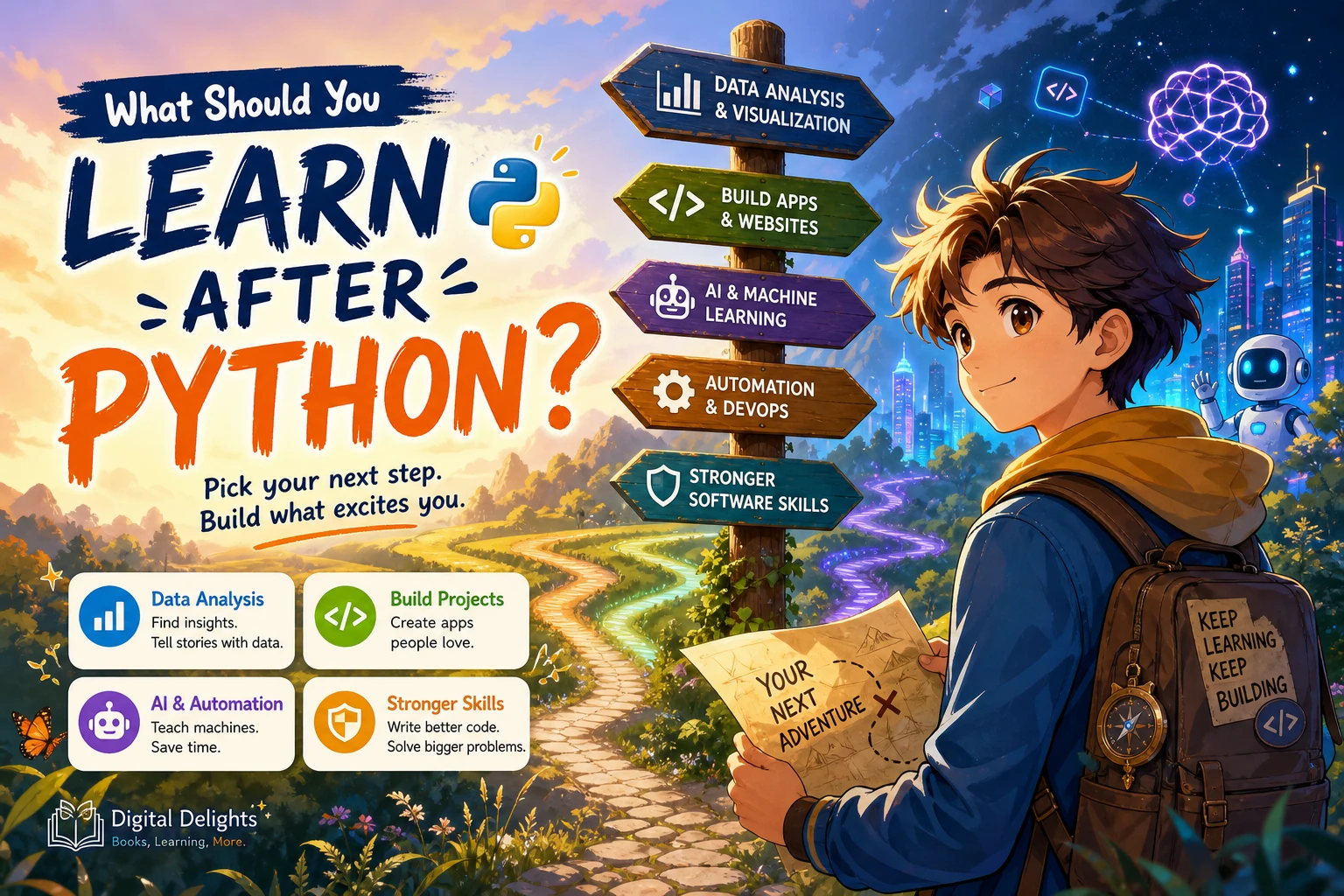
What to Try After Your First Script
Once the greeting works, try a small change that introduces one new idea:
- Ask another question: store a second answer in a new variable and include it in a message.
- Do a calculation: ask for a number, convert the answer to an integer with
int(), and print a simple calculation. - Use a condition: respond differently depending on whether an answer matches a value you expect.
- Make a tiny utility: write a script that formats a short note or calculates a simple total.
Keep the first projects small. The goal is to practise turning an idea into instructions, running those instructions, and improving them—not to build a complete application in one attempt.
Command-line arguments, which let someone provide values when starting a script, are a useful later step. Python’s argparse module can help manage arguments and produce help messages, but it is not needed for this first example. Read the argparse documentation when you are ready to explore that approach.
Choosing a Resource for More Python Practice
If you want a structured introduction alongside writing and testing small programs, Python Coding & Programming: The Complete Manual covers beginner topics such as setup, first code, saving and executing scripts, variables, functions, and debugging. For learning through a sequence of practical tasks, Python Projects for Beginners: A Ten-Week Bootcamp Approach to Python Programming is organized around a week-by-week learning path and small programs. Choose based on whether you prefer a broad manual or a project-led structure.

Python Coding & Programming: The Complete Manual
New learners who want a general manual that also covers setup, saving and executing scripts, and debugging.
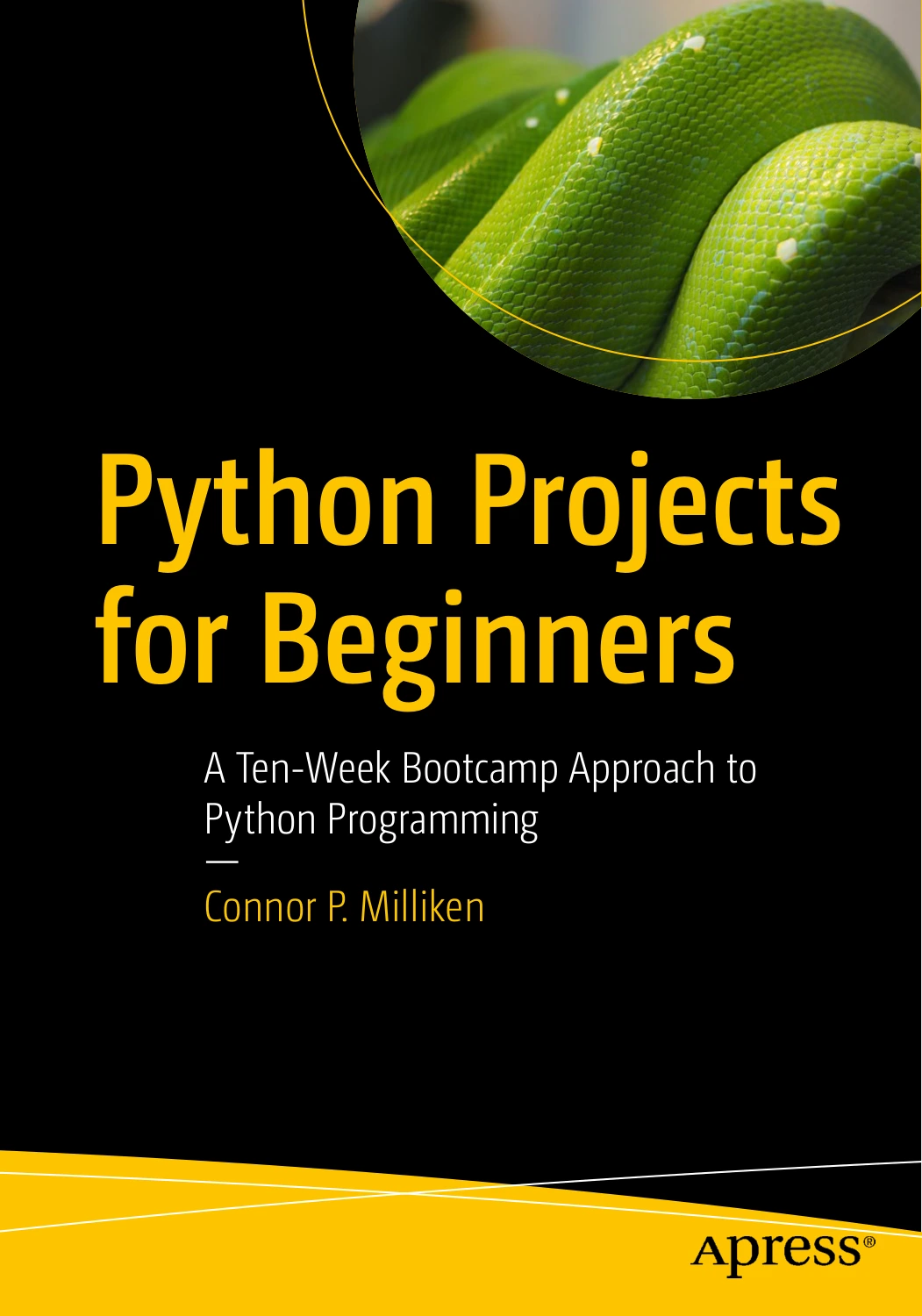
Python Projects for Beginners: A Ten-Week Bootcamp Approach to Python Programming
Beginners who prefer a week-by-week sequence of practical tasks and small programs.
You can also browse the Python book collection for further learning resources.
Frequently Asked Questions
Do I need to install Python before writing a script?
You need access to a Python interpreter to run a local .py file. Check whether one is available on your computer; if not, install a stable Python 3 release using the instructions for your operating system. The exact setup process varies by platform.
Which editor should I use for my first Python script?
There is no single editor required for this example. Choose a plain-text editor that lets you save a file with a .py extension. A specialized coding environment can be helpful, but it is not necessary for this small script.
What is the difference between a Python script and the interactive prompt?
The interactive prompt runs instructions as you enter them. A script is a saved file of instructions that you can run again, edit, and share. This guide uses a script so you can practise saving and rerunning your code.
Do I need to install extra packages for a first Python script?
No. The greeting program uses built-in Python features and requires no third-party packages. Consider installing an external package only when a later project needs it.
Why does my Python command differ from the example?
The command used to launch Python can vary with the operating system and installation. Try the command documented for your setup, and make sure the interpreter can find the script’s path.
Keep the First Step Small
To build your first Python script, write a few lines, save the file as .py, run it with the interpreter, and make one change. That loop is the foundation for learning to program. When you are ready, add one feature at a time and use documentation or a structured learning resource to answer the questions that come up.
Sources
- The Python Tutorial — notes its intended audience and provides a language-learning reference.
- Command line and environment — documents running Python from the command line.
- Using Python on Windows — covers Windows-specific Python use.
- Download Python — official Python downloads.
- argparse documentation — reference for parsing command-line arguments.