

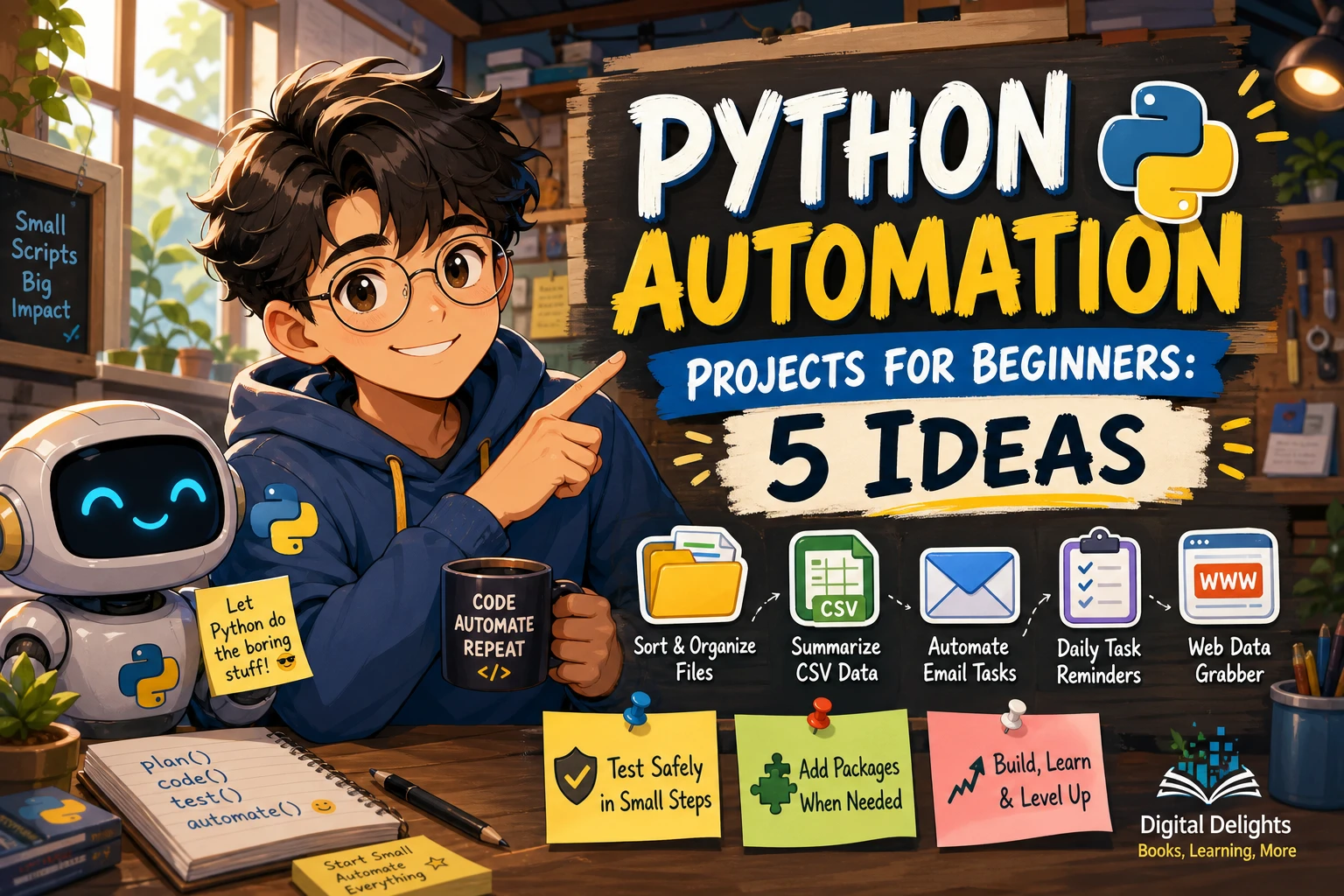
Python Automation Projects for Beginners: 5 Ideas
The best first Python automation project is a small, repetitive task you can test safely—such as sorting copies of files or summarizing a sample spreadsheet. Start with a job that has clear rules and an easy way to check the result. You do not need a large application or a collection of extra packages to make a useful first script.
This guide takes you from the Python basics to five projects in a sensible order. You’ll also find a safe file-organizer example, advice on testing changes, and guidance on when to try packages, web services, or graphical-interface automation.
What should you automate first?
Choose a task that you repeat, understand, and can undo. Good first candidates include sorting a practice folder, counting rows in a CSV file, or creating a simple summary from local data. Avoid starting with a script that sends messages, changes important files, or relies on a website working in a particular way.
A useful project usually follows this loop: identify the input, define the rules, produce an output, then check that output against what you expected. Python’s standard library includes tools such as pathlib for file paths and csv for tabular data, so several starter projects can be built without installing extra packages. Python standard library documentation
What you need to know before starting
You do not need to master Python before automating a small task. It helps to be comfortable with:
- Variables and data types: keeping track of names, numbers, and text.
- Conditionals: choosing what to do when a file or value meets a rule.
- Loops: repeating an action for each item in a list or folder.
- Functions: grouping steps into reusable, named actions.
- Files and paths: finding, reading, and writing data on your computer.
- Basic error messages: using them to identify what needs attention.
Install a stable Python release using the instructions for your operating system, and check that you can run a short script. For projects that use only built-in modules, a separate package installation is not required. If you later add third-party packages, Python’s venv module can create an isolated environment for a project; activation steps vary by platform. Python virtual environment documentation
Five Python automation projects for beginners
These Python automation projects for beginners move from local, easy-to-check work toward projects with more moving parts. Build one version, test it, and add features only when the basic result is reliable.
1. Sort files into folders
Make a script that groups files in a practice folder by file type—for example, putting image files in one folder and text documents in another. Begin with a folder of copies rather than your main Downloads or Documents folder.
Practice: working with paths, file names, loops, and conditions. The standard-library pathlib module can help inspect paths and file suffixes. Before moving anything, have the script print the planned source and destination so you can review the list.
2. Summarize a CSV file
Use a small CSV file to answer a straightforward question, such as how many rows contain each category or what the total is for a numeric column. The Python csv module can read tabular files without an extra package.
Practice: reading rows, checking column names, converting text to numbers, and handling missing or unexpected values. Start by printing a summary in the terminal. Writing a new summary file can be a later step once the calculations look right.
3. Create a report from local data
Build on the CSV summary by writing a short text report to a new file. It might contain a date, the number of records processed, and a few totals. Keep the original data unchanged and choose a distinct output filename, such as summary-report.txt.
Practice: combining file input, calculations, and formatted output. A useful report should also make clear what data it covers and flag values the script could not process, rather than silently ignoring them.
4. Batch-rename files with a preview
Create a script that proposes consistent names for a set of sample files—for instance, adding a prefix or replacing spaces with underscores. First show the old and proposed names without changing anything. Review the preview, then test the renaming step on copies.
Practice: string methods, paths, and careful handling of name conflicts. If a proposed destination already exists, skip that file and report the conflict rather than risking an unwanted overwrite.
5. Add a command-line option or schedule a script
Once a script works reliably by hand, make it easier to run. A command-line option might let a user choose an input folder or switch between preview and apply modes. Scheduling the script to run automatically is a later extension; first confirm that it behaves correctly when you start it yourself.
Practice: separating settings from the main logic and making a script easier to reuse. Scheduling instructions depend on the operating system and setup, so check the appropriate system guidance rather than assuming one method works everywhere.
A safe first project: preview a file organizer
This example scans files in a practice folder, proposes folders based on file extensions, and prints the planned moves. It does not move anything while APPLY is set to False. Change the sample path to a folder you created specifically for testing. Inspect the preview before enabling changes, and keep a backup of anything you care about.
from pathlib import Path
import shutil

source = Path.home() / "Downloads" / "practice-copy"
apply_changes = False  # Keep False while reviewing the preview

folders_by_extension = {
    ".jpg": "images",
    ".png": "images",
    ".pdf": "documents",
    ".txt": "text",
}

for file_path in source.iterdir():
    if not file_path.is_file():
        continue

    folder_name = folders_by_extension.get(file_path.suffix.lower())
    if folder_name is None:
        continue

    destination = source / folder_name / file_path.name
    print(f"{file_path.name} -> {destination.relative_to(source)}")

    if apply_changes:
        if destination.exists():
            print(f"Skipped: destination already exists: {destination.name}")
            continue
        destination.parent.mkdir(exist_ok=True)
        shutil.move(str(file_path), str(destination))
The example intentionally handles only a few extensions and only files directly inside the chosen folder. Extend the mapping after the first test works. Keep preview mode available even after you add more features; it gives you a chance to catch a wrong path or rule before the script changes files.
Build safely: test before making changes
File automation can have consequences if a path or rule is wrong. Python’s input-and-output tutorial notes that opening a file in write mode ('w') erases existing content. Use a new output path where possible, and preview or back up files before changing them. The tutorial also covers using with to manage files and UTF-8 for text when no other encoding is needed. Python input and output tutorial
- Work on copies: use sample files or a duplicate folder while developing.
- Preview first: print planned moves, renames, or changes before applying them.
- Avoid overwrites: check whether an output already exists and decide what to do explicitly.
- Use clear paths: keep folder locations in one setting rather than scattering them through the script.
- Report problems: tell the user which file failed and why; do not hide errors.
- Keep a small test set: include ordinary cases and edge cases such as an empty folder or an unfamiliar extension.
As scripts grow, Python’s logging module can record useful events, such as how many files were processed or which inputs were skipped. Begin with simple printed messages; add logging when you need a record that is easier to review later.
When should you add packages or external services?
Try the built-in tools first when they can handle the task. Add a third-party package when you have a clear need and have checked its installation and usage instructions. Use a virtual environment to keep project dependencies separate from other Python work.
- Web projects: a scraper or API client may need extra packages or account credentials. Check the site’s rules and the service’s requirements before building around them.
- Email automation: sending messages involves account and authentication setup. Test with a controlled recipient and avoid placing passwords directly in a script.
- Mouse and keyboard automation: graphical interfaces can change, so a script that depends on screen layout may need frequent attention. Start with file or data tasks unless controlling the interface is essential.
These projects can be worthwhile later, but their setup and reliability depend on the service, computer, and project details. Treat them as extensions—not prerequisites for learning automation.
Common beginner mistakes to avoid
- Automating too much at once: start with one input, one rule, and one output.
- Skipping the preview: a script that works on one example can still behave unexpectedly on a full folder.
- Hard-coding paths everywhere: put the path in one clear setting that is easy to update.
- Assuming every input is valid: files may be missing, columns may differ, or values may not be numeric.
- Adding tools before they are needed: extra dependencies add setup work. Confirm the built-in modules are not enough before introducing them.
- Stopping after the first success: rerun the script on a second sample and check how it handles duplicates, empty inputs, and unexpected files.
Choosing a guide for your next step
If you want a structured route from Python basics into practical scripts, the catalog listing for Python Automation Crash Course: 3 Books in 1 describes coverage that includes file management, scheduling, email, web scraping, and REST APIs. Its breadth may suit readers who want to explore several types of automation after learning the fundamentals; you can still work through the projects in a cautious, one-at-a-time sequence.
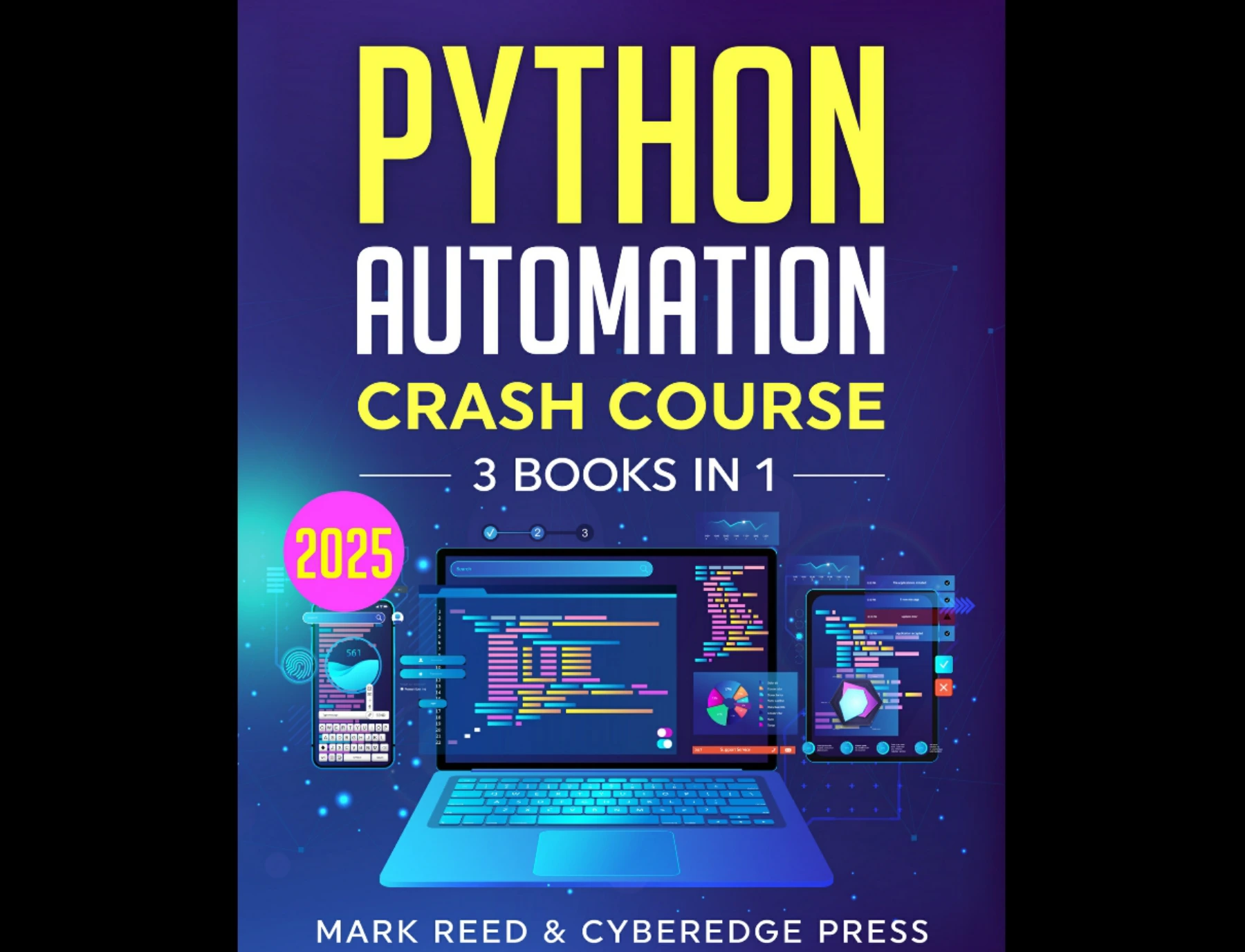
By Mark Reed
Readers ready to explore file tasks, scheduling, email, web scraping, and APIs in a structured collection.
For readers who prefer exercises to reinforce concepts, Automate the Boring Stuff with Python Workbook is described in the catalog as a companion with questions, exercises, and mini-projects covering topics such as file handling, web scraping, spreadsheets, and databases. Choose based on whether you want a broad automation guide or structured practice.
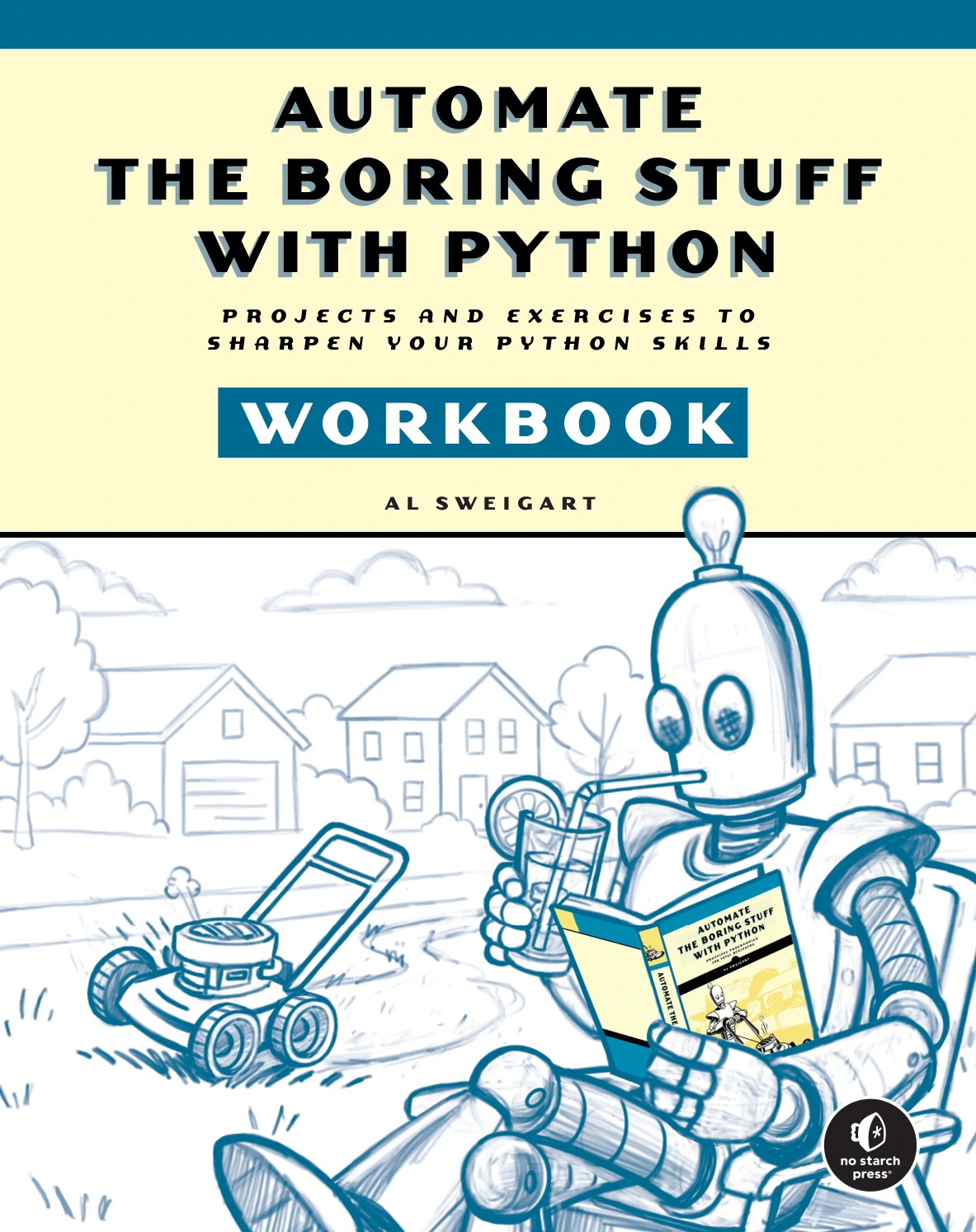
Automate the Boring Stuff with Python Workbook
By Al Sweigart
Learners who prefer exercises and mini-projects covering file handling, web scraping, spreadsheets, and databases.
Frequently asked questions
What should I learn first for Python automation?
Start with variables, conditionals, loops, functions, and basic file handling. Then use them on one small task, such as listing files or summarizing a sample CSV. Learning by building a modest script helps connect the concepts to a concrete result.
Can I build Python automation projects without installing packages?
Yes. Projects such as sorting local files or reading a CSV can use Python’s standard library. Some web, spreadsheet, email, or interface projects may call for additional tools or setup, depending on what you want the script to do.
How do I stop a Python script from damaging my files?
Develop on copies, print a preview of planned changes, use a separate output location, and check for existing destination files before writing or moving anything. Keep backups of important data and test edge cases before using a script on real files.
Which beginner automation project should I try first?
Choose a repetitive task with a small input and an easy-to-check result. Sorting a folder of copies or counting entries in a sample CSV are good starting points. The best choice is the one you can test and undo safely—not necessarily the one with the most features.
When should I automate a task on a schedule?
Schedule a script only after it works reliably when run manually and you understand its inputs, outputs, and errors. Scheduling methods vary by operating system, so check the instructions for the environment where it will run.
Start small, then make it repeatable
Python automation becomes easier to reason about when each project solves one clear problem. Begin with a local task, build a preview, test on copies, and record what the script does. Once the result is dependable, add a command-line option, a report, or a schedule. That steady progression gives you practical projects to learn from without making safety an afterthought.